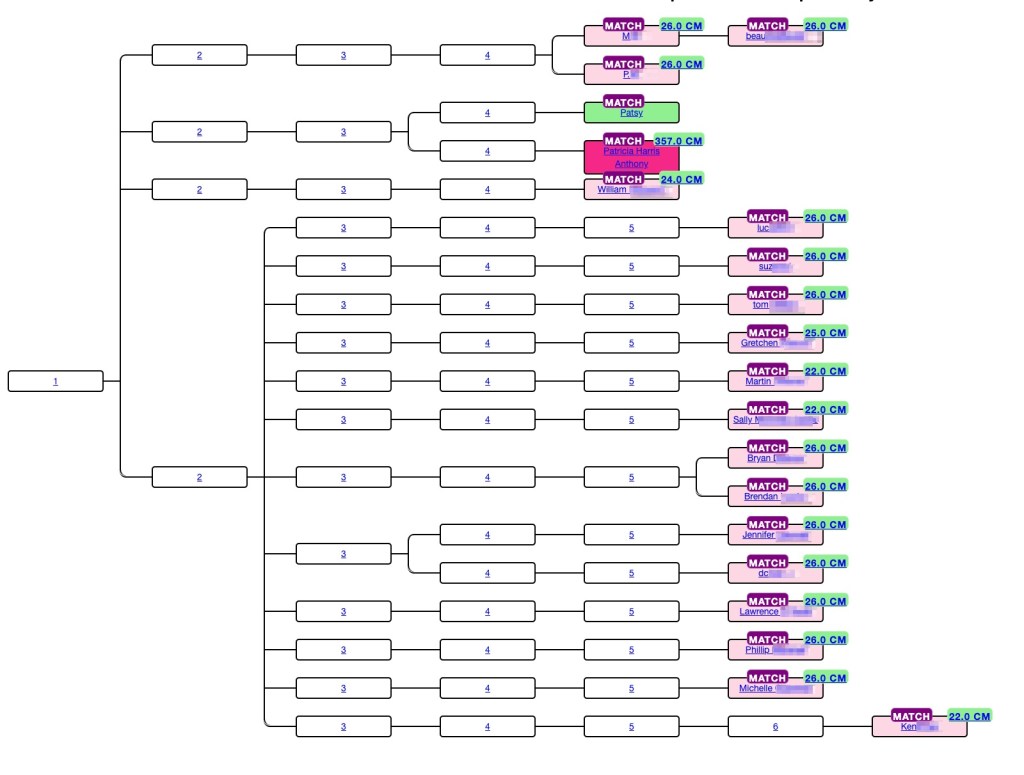
From ProTools to AutoKinship tree using matches shared by my cousin, Tish1, and me.
Genetic Affairs has unveiled a powerful new feature in AutoLineage—now you can apply AutoKinship to each individual cluster generated from Ancestry ProTools shared matches, unlocking a whole new level of insight into your family connections! It invokes the functionality of AutoKinship on the site directly at no additional cost, to provide reconstructed trees based on the shared DNA between shared matches.
In a previous blog post, I described how to get started with Ancestry and AutoLineage. In short, these are the steps involved. First, a profile is created or selected after which the same is done for a DNA test. Select a generic DNA test in order to process Ancestry matches. Next, we import DNA matches by saving each match page (make sure to set the number of matches to 50) to an HTML file. Repeat until you have enough matches. Next, we download shared matches for the matches of interest followed by a clustering analysis. Once we obtain the clusters, we can select an individual cluster for which we want to have a reconstructed AutoKinship tree.
In this blog post I will demonstrate how I cluster the shared matches of my 2nd cousin Trish. For this purpose, I will visit each DNA match page in the shared matches list with Trish and download their shared matches.
First, I imported my direct DNA matches. Next, I visited Trish her match page and downloaded the shared matches by using the Chrome “Save page as” to save the shared matches. Trish and I have three pages of shared matches, and I saved them as Trish-p1, Trish-p2 and Trish-p3. I used the “Import shared matches” to add these matches that Trish and I share. Next, I visit each DNA match in the shared matches with Trish and download the shared matches for each match.
In order to get a cluster that only showed Trish and my shared matches, I selected “DNA matches” from my DNA test linked to Ancestry page and then clicked on Trish’s name.
Partial list of my shared matches.DNA match overview for Trish.
Clicking on “perform clustering analysis” brings up the Cluster wizard. Again, this clustering approach will only take all DNA matches that are shared with Trish, basically allowing me to only cluster matches that share an ancestral connection with myself and my 2nd Trish.
Cluster Wizard.
Trish has 42 matches that she shares with me.
Clusters of Trish’s and my shared matches.
Notice the cM values listed in each of the colored cells in the cluster. These are the result of the new Ancestry ProTools data!
Trish and I share great grandparents, Thomas Byrnes and Bridget Fenton.
Trish and my family tree.
Thomas was born in County Roscommon, Ireland and Bridget in County Limerick. They met and married in Virginia. From building out family trees we know that the orange cluster has ancestors from Counties Roscommon and Mayo, and the green cluster has matches with surname Burns. Those matches would be on Thomas’ side. The brown cluster has ancestors who lived in County Limerick and would be on Bridget’s side. Very few of the matches in the large red cluster have any trees or other family information.
Clicking on “Matches” at the top of the screen brings up a table with the list of matches in each cluster.
List of matches in the clusters.
The next step is to click on cluster 3, which brings up just the red cluster. Again clicking on “Matches” at the top of the screen brings up the list of matches for cluster 3 only.. In the upper left of the screen is the “Run AutoKinship” button.
Cluster 3 matches and AuroKinship button.
Once AutoKinship analysis starts a message appears at the bottom of the screen telling you that the results will be sent to your email. The zip file should be saved to the computer and then unzipped. There are ten probability trees in the AutoKinship.
AutoKinship for the red cluster.
AutoKinship tree gives hints as to how matches can be related based on the amounts of shared DNA. At the top of the tree beau is listed as child of M, and M and P are listed as siblings. This is identical to what Ancestry said about these matches. But not every relationship is correct. Trish and I are second cousins, but we share a larger amount of DNA than would be expected compared to the average for second cousins, and we’re often miss assigned as first cousins or first cousins once removed. However, the AutoKinship tree can be used to get valuable hints for connections for the matches.
At the bottom of the page with the first AutoKinship tree is a matrix of the DNA matches used for the tree. This matrix can be downloading into Excel and saved.
Part of the DNA matrix for the red cluster.
In conclusion being able to organize you Ancestry ProTool matches into a probability tree and generate a matrix provides addition methods for viewing your shared matches.
Note that the current AutoKinship approach will be replaced with a more versatile version that will run directly in AutoLineage. This version will allow for using pre-determined relationships or integration of known trees into the reconstructed trees.
Patricia Harris Anthony, Trish, has given me permission to use her real name and her data.
When I saw that ancestry was showing how many centimorgans, cM, your matches share with other shared matches like 23andMe and MyHeritage have been doing all along, I decided I needed to purchase the Pro Tools. One of the things I’ve been doing is to look at close shared matches and see how much they share with other shared matches. Then I built a matrix of these of these data. This allowed me to determine where additional cousins fit into my family tree. In one example, there was a cousin that I knew was one my mother’s paternal side, but he had a fake name and no tree, so I couldn’t tell exactly where he fit. Seeing how much he shared with other known cousins provided the answer.
Jim Antley has a program that copies the shared matches from the Pro Tools. After viewing the page of shared matches select “Save Page As” from the ‘file’ menu on Chrome. Do not change the filename and save the file. Make sure that the little circle at the top right of Chrome has completed before leaving the tab, as shown in figure 1.
Figure 1. The little circle filling on the left, and after it has completed and the file is saved, on the right.
Next open “The Antley Method DNA Connections Display Tool” and choose the file that you just saved. Next ‘upload’ the file. When the page changed you can select various parameters if you want to limit the data. I have left all the defaults at this page. The resulting screen is displayed. There are two tables displayed. Figure 2 shows the beginning of the first chart that is at the top of the window. This is the list of shared matches for my cousin len and me. Len does not have a tree and I don’t know where he fits in my tree. Both cvr and Joseph are known cousins and in my tree. Being able to see how many centimorgans Len shares with them and the others in the table will allow me to place him in my tree.
The second table that is displayed in figure 3. This is the table that I use as I want to make a matrix with the matches relationship to each other as well as to me.
Figure 3. This table is shown below the one in figure 1. Scroll down the page to find it.
I ‘select all’ on the page, and then ‘copy’ it. Going to a new Excel file I ‘copy’ it. To avoid clicking on a link in error, while the data is all highlighted, I right click and select ‘Remove Hyperlinks’. Since I want the second table I scroll down the Excel file and either delete the top table or just work with the second table. The beginning of that Excel table is shown in figure 4.
Figure 4. The Excel file that I use.
I am interested in knowing about the trees and will add that data as a separate column, but I mainly want the cM values. To make it easy to get that information, I first turn off merge cells for columns B and C and then select columns A through C for the match name the shared cM for both myself and the other match, here that match would be Len. To turn off the merged cells I select columns B and C, then select ‘Format’ and ‘Cells’ and unclick ‘Merge’. Figure 5 shows the resulting file.
Figure 5. After turning off merged cells in columns B and C.
Now the match name and the cM that they share are on the same row. I select columns A through C for each match and then ‘copy’ and ‘paste’ to a new Excel file. Since I no longer need this Excel file I delete it. In the new Excel file I add a new row 1 and then copy the list of names in column A and paste them transposed in row 1 starting in column B. This gives me the beginning of the matrix. I add yellow color to the cells where each match would match themselves. Figure 6 shows the beginning to my matrix.
Figure 6. The beginning of the matrix.
I know that cvn and Joseph are my second cousins, 2C, and that Jeffrey is cvn’s son. Andrew is second cousins twice removed, 2C2R, and G.P. is second cousin once removed, 2C1R to me. An important clue here already is that the amount of DNA G.P. shares with len would be that of a nephew. After adding all of the matches I look specifically at the amount of DNA I share with each match. For amounts less than 90 cM, I use the unweighted amounts of DNA and I add the number of segments. The unweighted DNA amounts agree with the amounts of shared DNA on other sites. The matrix now is shown in figure 7.
Figure 7. The completed matrix to determine how len fits in my family tree.
Adding all this information I can see that len fits in my tree, as shown in figure 8. This tree was generated using AutoLineage and included DNA matches from several different testing sites. The 65 cM is on the low side for a second cousin, but not impossible. Len is first cousin to Joseph and to cvr and uncle to G.P. He is second cousin to me. Even though we only share 65 cM with 4 segments. Both the Shared cM project and SegcM list it as possible.
Figure 8. My maternal paternal family tree.
Third or Fourth Great Grandmother?
I decided to try another problem that I’d not been able to solve for years. My second great grandmother was Mary Aide, born in County Kilkenny, Ireland. I have DNA matches to Dawn and several others on the Aide line whose third great grandmother was Mary Kilfoil. Is Mary Kilfoil my Mary’ Aide’s mother or perhaps grandmother? Using the Pro Tools I was able to see how several other matches were related to Dawn and her sister, Sheri. Perhaps knowing how more DNA matches were related to me and to them would help this problem. I used the same process as I described above. I started building out my matrix with known matches who descended from Mary Kilfoil and adding the amounts I shared with them and the amounts they shared with each other to try to build out a more complete tree for her family. There are several parent – child matches. My daughter Jenn, Dawn’s son Ryan, and Kath’s daughter Abby show up as matches to several of the others.
Figure 9. Aide Matrix.
A couple days ago I saw a YouTube that Dana Leeds did on how she uses these Pro Tools. She has four steps when she reviews the shared matches; looking at trees, common ancestor hints, her notes and then looking at the highest match in the shared matches list. Dawn shared her tree with me years ago, and we’ve been trying to figure out the connection. Looking at common ancestors Dawn, Sheri, Kath, Ron, Dan, Matt, and Ryan all show Mary Kilfoil as common ancestor to me, and Through Lines show Mary Kilfoil as my third great grandmother. My notes all indicate that Mary Kilfoil is the common ancestor, and the highest match to Dawn is her sister Sheri.
If Mary Kilfoil is my third great grandmother Dawn, Sheri, Kath, Dan and Matt would be my fourth cousins (4C) and Abby and Ryan would be fourth cousins once removed (4C1R). Conversely is Mary Kilfoil is my fourth great grandmother they would be 5C and 5C1R. From either the Shared cM Project or SegcM it’s not obvious which is the case. Next I put the data into BanyanDNA, see figure 10, setting it up so that I was the hypotheses. Two my of second cousins who also descend from Mary Aide have done DNA tests but not at Ancestry. Jennie tested at FamilyTreeDNA and Fred at 23andMe.
Figure 10. BanyanDNA tree.
Hypothesis 1 would have Mary Kilfoil as my third great grandmother and hypothesis 2 would say that she is my fourth great grandmother. The results are shown in figure 11.
Figure 11. Hypotheses results.
Now that I know where Mary Kilfoil is in my family tree I added her to my tree on Genetic Affairs AutoLineage as well. Then I ran ‘Find Common Ancestors.’ Figure 12 shows my new reconstructed family tree which includes additional DNA matches of mine from other sites. Details of using AutoLineage can be found at my earlier blog post.
Figure 12. AutoLineage Reconstructed family tree for my Barry and Aide side.
Conclusion
I have a number of other matches where I’m not quite sure where the match fits in my family tree. From these two examples it appears that using the new Pro Tools to see shared DNA matches will be very helpful. Now on to more complicated matches and finding new cousins!
If you have questions about how to get the most from Ancestry Pro Tools or any of your DNA results contact me at: info@patriciacolemangenealogy.com
I like to have pretty trees when I run ‘Find Common Ancestors’ on AutoLineage. But sometimes they turn out very messy. This blog will describe why that happens and how to fix it. The most common occurrence is when a match has more than one tree. I know that my second cousin (2C) Trish has tested at all the various sites, so I would only add her tree once to AutoLineage. The problem occurs when there is an unknown match that is on more than one site, and I add her tree from each of the sites. It also occurs if the trees from GEDmatch AutoKinship and FTDNA AutoCluster/AutoTree are both used in the analysis. This is what happened with Rachel’s two trees as shown in figure 1. The brown square over the names in the trees indicate the same person occurring more than once in this reconstructed tree. Most of the time you won’t know that you have more than one tree for a match until you run Find Common Ancestors, but then it becomes obvious.
Figure 1. Rachel is on FTDNA and GEDmatch and has trees on both sites.
This type of problem is easily fixed by removing one of the two trees and then linking the DNA from both GEDmatch and FTDNA to the same tree for Rachel. Next I look at the linked trees, figure 2, to see which has the more people in it. Since I’m trying to make family connections and don’t know how many generations back this might occur, the larger tree has a better chance of giving the connection.
Figure 2. The linked trees for Rachel.
The GEDmatch tree has more people, so I will keep that one and delete the FTDNA smaller tree. Clicking on Rachel’s name, as shown in figure 3, and then on ‘link to DNA match’ brings up the Link tree person to DNA match wizard, shown in figure 4. Next I connect Rachel’s DNA from FTDNA to her GEDmatch tree.
Figure 3. Linking Rachel’s tree to DNA match.Figure 4. Connecting Rachel’s DNA from FTDNA to her GEDmatch tree.
Then looking at Rachel’s tree I can see that DNA from both sources have been attached.
Figure 5. Rachel’s tree showing DNA from both GEDmatch and FTDNA have been connected.
Other reasons for brown squares are differences in the trees. For example, one tree has middle name and another tree has middle initial. Here David B Aylesworth 1852-1927 is in one match’s tree but his middle name, Brown, is in a group of trees from other matches. By editing the tree with only the initial and adding Brown as his middle name, it becomes clear that both David’s are the same person and they will be combined.
Figure 6. One match has middle name listed and the other match used middle initial.
Figure 7 shows another case of different names. In the blue box John Brackett is an individual person who comes from one of the trees. In the purple box Captain John Brackett is not an individual but a group who is in several trees. It’s clear from the rest of the tree that they are the same person. Another method for connecting the individual tree person, John, to the common ancestor group Captain John is to use the Common Ancestor tool.
Figure 7. John Brackett and Capt. John Brackett.
Clicking on John Brackett brings up his Tree Person, as shown in figure 8. At the bottom of the Tree Person is a link to connect him to Common Ancestor which brings up the Common Ancestor wizard shown in figure 9.
Figure 8. John Brackett’s Tree Person.Figure 9. Wizard to link tree person to common ancestor.
After putting in John Bracket’s name, the list of potential common ancestors appears. Clicking on the correct one brings up a list on the right, shown in figure 10 showing the existing common ancestors.
Figure 10. List of Captain John Brackett common ancestors.
Clicking save will add John Brackett into the common ancestor group with Captain John Brackett. Now the reconstructed tree will show the tree branch that John Brackett was in as part of the group to Captain John Brackett. Editing the tree and changing David B to David Brown is a permanent change to the tree. Using the Common Ancestor wizard is only valid until common ancestors are deleted and ‘Find Common Ancestors’ is run again.
Missing dates will also cause this problem. in the example in figure 11 it’s obvious that both Oliver born 1830 and George born 1869 would now be deceased. What I’ve done if the tree is a match’s and I don’t yet know how my family connects to that match, is to set the death date one hundred years after their birth date. I also add a note to the match stating that it’s a fake death date. Alternatively I could research for the death dates for Oliver and George and will definitely do so if this family connects to my tree.
Figure 11. Missing death dates.
Some trees have several problems in them. In figure 12 Henry Washington Owen, 1836-1904 has full name and both dates, but Henry W Owen is missing middle name and dates. Adding middle names and dates will fix this duplication, but there might still be other problems.
Figure 12. Henry Washington Owen missing middle name and dates in one match’s tree.
That additional problem is shown in figure 13. Henry Washington Owen is listed without his wife in one tree and with her in another. Since the descendants of Henry and those of Henry and Rachel are shown duplicated, it’s clear that Rachel needs to be listed in the tree at the top that doesn’t have her.
Figure 13. Missing spouse causes duplication in the tree.
Perhaps not obvious that this would be a problem, but having a tree for both parent and child, when both have done DNA testing results in brown squares. Figure 14 is my family. Jennifer is my daughter. To solve this one, I remove my tree when I’m working on her DNA matches.
Figure 14. Parent and child both took DNA tests and have trees.
I’ve seen several trees where extra characters or notes have been added. These, of course, do not match up with other people’s trees and need to be edited out. Here the tree owner has added * and 2x to their second great grandparents, as well as to all of their great grandparents. These extra characters had to be edited out of the tree so it would be like the other trees.
Figure 15. Tree with extra characters added to it.
Some errors are difficult to find and take a lot of searching. The tree in figure 16 shows my grandfather’s sister, Margaret, and her husband. I know that Emil, Joseph and Arthur were full brothers. The red circle indicates a different mother or father, as shown in figure 17.
Figure 16. My great aunt’s family.Figure 17. Explaining the red circle.
This one took looking at each tree to Margaret and her husband, Adolf in detail. In one tree there was Adolf Pietro and in the other tree it has Pietro Adolf, as shown in figure 18.
Figure 18. Reversal of first and middle names.
Since this was my family I had several records that indicated his name was Pietro Adolf, and he went by Peter in the United States. I was able to edit the trees so that they all listed him as Pietro Adolf.
One of the most difficult trees for finding the problem is shown in figure 19.
Figure 19. Another tree with problems.
Looking at the great grandmother, Anna Kaisa MIkontytär Kiviahbi Haataja, the lower tree has an extra name, Nopenen, which appears to be the married name. I’ve circled it in figure 20.
Figure 20. Extra name in the lower tree.
Viewing the trees here for Carolyn and Nancy it’s Carolyn’s tree that has the extra name. I edited Nopenen out of Anna’s listed and saved the tree. Then reran Find common ancestors. But, as shown in figure 21, there’s still a problem.
Figure 21. Still something is wrong.
The dates all match. Next the two trees will have be examined item by item. Carolyn’s tree is in figure 22 and Nancy’s in figure 23.
If you look closely at Maria Lisa Noponen’s name, Nancy’s tree has Liisa with an extra i in the name. That could be the problem! But there’s still a problem after fixing Lisa’s name.
Figure 24. Something is still wrong.
There still seems to be a problem with Efraim and Maria Lisa. At first glance the names and dates look identical. However, it comes down to how Nancy and Carolyn entered Maria’s name into AutoLineage. Carolyn’s naming of Maria is in figure 25 and Nancy’s is in figure 26.
Figure 25. How Carolyn named Maria.Figure 26. How Nancy named Maria.
Whether Kiviaho should be a middle name or part of her last name, I do not know. But having them listed differently in Carolyn and Nancy’s trees was causing a problem. After changing Nancy’s tree to make Kiviaho part of Anna’s middle name, which agreed with Carolyn’s tree, there’s finally a nice, clean tree showing that Nancy and Carolyn are sisters.
Figure 27. Fixed tree.
Most of the time those brown squares indicate some sort of difference between two trees so why would they show up when there is a single match and only one tree, like in figure 28?
Figure 28. Bessie’s reconstructed tree.
Expanding Bessie’s tree, as shown in figure 29, shows that one set of her second great grandparents are both on her maternal and paternal sides. The tree is correct. Since I’ve found what is causing the brown squares I made a note on the tree that one set of second great grandparents occurs twice. That way when I see this tree again I know that it’s not an error.
Figure 29. Great grandparents occurred in more than one family.
Conclusion
To conclude, there are two options available to fix the problems of names from different trees not matching as described in this blog post. First, by fixing the underlying data and re-running the common ancestor identification. This approach is the most sustainable, because the common ancestors will remain improved even after deleting and rerunning the analysis. Make sure to backup the modified tree in case you need to re-import it. The second approach is more quick, by directly linking a missing tree person to the common ancestor it is missing from. The downside of this approach is that after deleting the common ancestor, the link needs to be re-established because the underlying tree person remains the same.
AutoLineage is a powerful tool that allows you to cluster your matches at a particular testing site but also to find common ancestors across multiple sites. In this blog, we will discuss a scenario when only data from FamilyTreeDNA (FTDNA) and GEDmatch can be used as sources, for instance for an investigative genetic genealogy search.
An example reconstructed tree using only FTDNA and GEDmatch data.
We will be importing and analyzing data from FTDNA and GEDmatch, and use the common ancestor identification tool to find common ancestors. Also, we’ll show how to use the hints tool to get insights about ancestral lines that could hold a potential common ancestor.
AutoLineage Landing Page.
From the landing page select ‘Register a new Profile’ in the left panel. Start AutoLineage by making a profile for the case you are investigating and for whom DNA matches are obtained. In this blog, we shall be using Dave as an example.
Starting a new profile.
Family Tree DNA
Next, a DNA test is registered.
FTDNA selected.
The first thing to do is to import Dave’s matches from FTDNA. Click on the ‘import matches’ button.
Flowchart showing Import matches.
Each testing site has its own list of methods for collecting matches.
Options for uploading matches from FTDNA.
Here we are using the first one, a CSV file from Genetic Affairs. Clicking on the question mark explains what file this option needs.
Explanation of the CSV from Genetic Affairs.
For this option, we first ran the AutoCluster analysis with the AutoTree feature enabled for FTDNA on Genetic Affairs.
Starting AutoCluster with AutoTree enabled on Genetic Affairs.
After starting the analysis, an email appeared with a download link. Alternatively, this link is also available in the notification section on the members page of Genetic Affairs (top right corner, under the bell icon).
After unzipping the results file, we found all the data we needed for AutoLineage. In the Gephi folder, two files are present; nodes.csv and edges.csv. The nodes file contains the matches that would be selected in the dialog box of the ‘Wizard – import matches’.
The imported DNA matches are shown after the import process has been completed.
Dave’s match list from FTDNA.
Clicking on ‘DNA test overview’ at the top brought back the flowchart where we selected ‘Import shared matches.’. Shared matches are required for the clustering process.
Flowchart for Import shared matched.
The wizard explains that the edges.csv file from the Gephi folder is used for the shared matches.
Getting shared matches.
After importing the shared matches, which can take some time, the number of shared matches for each match is now displayed in the table.
Matches list showing the number of shared matches each has.
With matches and shared matches available, we ran the cluster analysis for FTDNA. Going back to the ‘DNA test overview’ brings up the flowchart where we selected ‘Cluster matches.’
Flowchart showing Cluster matches.
The ‘Clustering wizard’ allows us to select the range of matches for the clustering, which type of clustering, and which color scheme should be used.
Cluster wizard.
We selected to run all of Dave’s matches in the clustering analysis. After selecting the “start clustering” button, the clustering chart appears.
FTDNA cluster of all of Dave’s matches.
GEDmatch
For the GEDmatch data, we added data from an AutoKinship analysis (Tier 1).
Setting up AutoKinship on GEDmatch Tier 1 tools.
Going back to Dave’s profile page we registered another DNA test and selected GEDmatch from the drop-down list. Next we ‘import matches.’ An unzipped AutoKinship report also has a Gephi folder containing the nodes.csv and edges.csv files. Nodes.csv contains Dave’s matches, and edges.csv contains the shared matches. Now these matches can be clustered. We ran 500 kits for AutoKinship and 362 of these have shared matches.
GEDmatch Cluster of 362 matches.
Adding Trees
Now it’s time to add trees. The trees are typically associated with the matches, but they are managed independently of the DNA testing site. Clicking on ‘Home’ in the left panel brings up a list that includes ‘Tree Management.’ Clicking on ‘Tree Management’ brings up the flowchart for Trees.
Tree Overview flowchart page.
In ‘Gather Trees’ we clicked on ‘Import Trees’ which brought up the ‘Tree Wizard.’ There is a setting for the trees associated with the GEDmatch DNA matches, and a different setting for trees associated with the FTDNA DNA matches. In both cases, they retrieve tree information from the ‘match’ files associated with the GEDmatch AutoKinship or the FTDNA AutoTree AutoCluster.
‘Import tree wizard’ showing the two options for importing the trees associated with both testing sites.
In both scenarios, we selected all the HTML files in the match folder of the unzipped AutoCluster FTDNA report or unzipped AutoKinship GEDmatch report. Using these methods also ensured that the trees were automatically associated with the FTDNA and GEDmatch DNA matches
The GEDmatch AutoKinship folder contents.The list of trees inside the matches folder.
Typically, iGG profiles are not associated with trees, but in our example, Dave does have a tree, and it needs to be linked to his profile. For other cases where the tester does not have a tree, such as people looking for birth parents, this step would be skipped, and you’d go on to ‘Find Common Ancestor’ from the various DNA matches.
To link Dave’s profile to a tree, we visited the tree management and select Dave in the ‘link profiles to tree’ section (alternatively, go to the tree view in Dave’s profile and associate the tree from there).
Link tree to profile in flowchart.
We clicked on Dave’s name and brought up the Wizard to link Dave’s profile to his tree. Next we searched for Dave’s tree in the name field.
Link profile to tree Wizard.
Selecting Dave brought up his tree where we selected him as the root person of the tree.
Selecting Dave as the root person in his tree.
This brought up Dave’s tree. Notice the person image over Dave’s name that tells the tree is connected to his profile.
Dave’s tree. Names of living persons or those who died since 1973 have been hidden,
Going back to Dave’s profile page we scrolled down to ‘Find Common Ancestors’ near the bottom of the page. There are now two DNA tests associated to his profile, and some of the DNA matches are linked to trees that we imported. We selected the ‘find common ancestor’ button to start the common ancestor wizard.
Find Common Ancestors in the Flowchart.
Running the analysis with the default birth year of 1800 identified eighty-seven common ancestors for Dave across FTDNA and GEDmatch. A problem arises when a match is on both sites and has a tree at both locations. The match on the right of the reconstructed tree shows both FTDNA and GEDmatch. She and her tree are duplicated which causes brown squares, indicating that tree persons are duplicated. Seeing a lot of these brown squares is often indicative of a problem.
DNA match who is on both sites and has trees on both.
Clicking on ‘Linked trees’ shows the trees that are attached.
‘Linked trees’ to Rachel DNA matches.
Right-clicking on the tree brought it up in a new tab. Since the GEDMatch tree has more people we kept that one and deleted the FTDNA one. Next, we attached Rachel’s FTDNA DNA match to the remaining GEDmatch tree.
Connecting Rachel’s FTDNA match to her GEDmatch tree.
Rachel shared 30 cM with Dave at FTDNA and 27.7 cM at GEDmatch. Looking through the list of matches in the Wizard there’s only one Rachel that matches Dave at FTDNA with 30 cM, so we selected that one.
Clicking on the DNA symbol over Rachel’s name shows she is connected to both GEDmatch and FTDNA matches to Dave.
Finding Hints
Since Rachel was the only match on both FTDNA and GEDmatch we used her tree and ‘calculate hints.’
Rachel’s tree.
Calculate hints is basically a common ancestor identification with a focus on the tree that is shown on the screen. The tool compares the names and dates in Rachel’s tree with all the other trees that have been loaded into AutoLineage. It can take a minute or so for this calculation depending on how many trees there are. Contrary to the regular common ancestor tool, the hints tool also shows hints about shared surnames and/or surnames and first names.
Rachel’s tree with hints.
The calculate hints from Rachel’s tree showed a yellow hint for Phyllis May Thompson and for Grace Tonkin. Yellowish hints indicates a shared surname and might mean that there might be something useful farther back in time. So we expanded the tree out first from Phyllis. The common surname, Barrett, was found in another DNA match’s tree, but the dates were several hundred years different. Next we looked at the hint for Grace.
Grace Tonkin hints.
Grace Tonkin’s hint showed that Dave had several people in his tree with the Tonkin surname, but her date is more recent than the people in Dave’s tree. We followed the Tonkin line past Grace in Rachel’s tree and found that Thomas Tonkin’s dates were in the same range as those in Dave’s tree.
Thomas Tonkin hint.
Thomas Tonkin’s wife, Margaret Hattam, also has a hint.
Margaret Hattam in Rachel’s tree.
Looking at Margaret Hattam’s hint we find that Dave’s tree has several Hattam ancestors.
Margaret Hattam hints..
Margaret Hattam was born in 1785 and Dave has an ancestor, Mary Hattam born in 1783. When we added Margaret’s parents to our tree, and rerun the hints tool we found new green hints linked to Margaret’s parents.
John Hattam and Elizabeth Eddy both have green hints.
Looking at John Hattam’s hint we found that he is in both Rachel’s tree and Dave’s tree. We’ve found the common ancestor!
John Hattam in both Rachel’s and Dave’s trees.
Since John Hattam had a birth date of 1754, we changed the birth year to 1700 in the parameter of the ‘Find Common Ancestors’ wizard and then reran ‘Find Common Ancestors.’
Changing the birth year in the Find common ancestor Wizard.
Now a total of fifty-four ancestors were found, and the reconstructed tree showed the connection between Dave and Rachel. They have common fourth great-grandparents, John Hattam and Elizabeth Eddy.
Reconstructed tree connecting Dave’s and Rachel’s trees.
Dave’s tree is showing brown squares which often means there is a duplicate tree or a date problem, however for Dave’s family this is correct. He has two Hocking lines. John Hocking’s parents were James Monteith Hocking and Martha Murrish. James Monteith is one of the Hocking lines, and Martha’s mother was Eliza Hocking, which is the other Hocking line. They both go back to John Hattam and Elizabeth Eddy, so they are Dave’s fourth great-grandparents twice!
Summary
We ran AutoLineage using only FTDNA and GEDmatch data to look for common ancestors to Dave and his matches. AutoLineage generated clusters for the FTDNA matches and also for the GEDmatch matches. Trees from both testing sites were loaded and attached to the DNA matches. Next, we identified common ancestors across all of the data. We found one match who had a tree on both sites. By associating her DNA from both sites to one tree and deleting the extra tree we avoided her showing as a common ancestor to herself. Next, we ran hints on her tree to get clues on which ancestral lines to prioritize for our research. After expanding the tree, and re-running the hints tool, we found the common ancestor. This led us to find that she and Dave had common fourth great-grandparents!
AutoLineage is the latest tool to be added to Genetic Affairs. It contains a number of the other tools, such as AutoClustering of DNA matches at any site. But the big new feature with AutoLineage is the ability to find most recent common ancestors (MRCA) for trees that you have added. These trees can be connected to DNA matches from any of the sites you have entered. I’d not realized how many of my cousins had done DNA tests until AutoLineage generated this reconstructed tree for my second great grandparents, Mathaus Schaaf and Anna Kuntz. This tree was generated using eleven trees of DNA matches and my tree. Where each DNA match tested is given as well as the amount of centimorgans we share is listed along with the match’s name. The surnames of living people as well as anyone who died after 1973 is hidden.
AutoLineage reconstructed tree.
Getting Started
The first thing is to define a Profile for the person who has taken a DNA test. This might be you or another family member that you’re helping. I’m going to use my daughter, Jenn, for the test taker in the examples. On the left panel select “Register a new Profile.”
The left panel of AutoLineage.
The following dialog box appears where you enter the name of the tester.
Enter the name of the person here.
Now the new profile is added to the list.
AutoLineage list of profiles, DNA tests and MRCA.
Next clicking on Jenn’s name in the list brings me to the ‘Profile Overview’ page where I can add a DNA test to her profile.The flowchart leads me through the steps. First I click on ‘Register DNA Test.’.
Profile Overview page.
The ‘Register Autosomal DNA test’ page has a menu of the testing sites that AutoLineage supports.
Menu for selecting Autosomal DNA testing Company.
After selecting Generic from the list and clicking on “Save DNA Test,’ the “DNA Test Overview’ page shows the next step is to obtains Jenn’s matches.
DNA Overview page showing Import matches as next step.
Clicking on ‘Import Matches’ brings up the Import Wizard which shows several choices for Generic.
Wizard for importing matches.
HTML file saved is selected which puts the blue question mark next to that selection. Clicking the blue question mark provides the explanation for obtaining that data.
To get the matches for Ancestry in HTML format, I visit Ancestry and click on Jenn’s DNA matches.The top of Jenn’s match data.
I want to collect Jenn’s data down to 20 cM so I’ll use the scroll bar on the right of the window and go to some value below 20 cM. Alternatively I could have selected the range for ‘Close matches’ to only go to 20 cM.
Select Close matches to only go to 20 cM in the match list.
Once I have Jenn’s match list down to 20 cM I’ll select ‘Save page as.’ from the Chrome File menu.
Save Page as to save the HTML file of all the matches down to 20 cM.
While the file is downloading you do not want to leave the page. There’s a symbol in the upper right of the Chrome page that shows a circle and an arrow. The circle around the arrow fills as the file is downloading. When the download is complete it changes to the arrow with what looks like an inbox under it. At that point the download is complete and it will show the filename. Then it’s safe to leave the page. This save will be an HTML file and a folder with a bunch of files in it. Apparently, the HTML file needs all these others, because if you delete the folder, the HTML file will not work anymore.
On the left the symbol as the file is downloading. On the right how the symbol looks when the download is complete.
Then going back to AutoLineage and the Wizard to upload matches, click on Select File, and then click on Jenn’s Data 20cM HTML file.
Jenn’s data file.
Once the data is received at AutoLineage the Wizard reports how many matches it found.
Wizard showing how many matches were retrieved for Jenn.
Once the wizard is closed the list of DNA matches appears.
List of Jenn’s DNA Matches.
The list shows how many cM the match shares with Jenn and which side of the family the match is predicted to be on. I have very few close cousins, so having all the of matches, except me on Jenn’s paternal side makes perfect sense to me.
Next I can add shared matches for her list of matches. He aunt and Barb, who is a 1C1R will match many of her DNA matches, so I’ll start with Luke since he’s just below 400 cM. I go back to ‘DNA Test Overview,’ and can select ‘Import shared matches.’
DNA Test Overview to ‘select’ Import shared matches.’
The ‘Import shared matches’ wizard looks very much like the import matches one. Here you can select all of the shared matches at once. Again go back to the test site and visit the match of interest and their shared matches.
Matches Jenn shares with Luke.
Once again I scroll down to the bottom of the list of shared matches and select ‘Save Page As.’
Luke’s shared matches with Jenn.
Again wait for the little symbol to show that the file has been downloaded.
Luke’s shared matches saved to folder of Jenn’s shared matches.
Depending on how far down in cM you want to run your analysis collecting all of the shared match data for every DNA match can be time-consuming. But then it’s all there on your computer and you can run whatever range of cM that you choose.
I sort my list of matches by file type which I find makes it easier to add all the shared matches HTML file at one time.
Shared match list ready to be uploaded to AutoLineage,
After saving the shared match HTML files for all DNA match, go back to the import shared matches wizard, and select all HTML at once. While the shared matches are being added to AutoLineage the Wizard will often give a message about what it’s doing.
When all the files are added the Wizard will give a message about what it has found.
There were 47 files of shared matches with 5304 matches retrieved,
Now the ‘DNA matches’ has been updated to show the number of shared matches each match has.
Match list with shared matches added.
Going back to “DNA Overview’ shows that running a cluster of these matches is the next item available.
On the ‘DNA Overview’ page ‘Cluster matches’ is the next item.
To get clusters for Jenn’s data that has been added, I’ll ‘perform clustering analysis.’
Clustering Wizard.
As you can see there are several different options. A Leeds-type analysis can be run using the matches from 400 to 90 cM, or a cluster using all the data can be run. If all the data is used, it can later on be reduced to view only 400 to 90 cM without rerunning the cluster. Different types of clustering algorithms can be used. ‘Normal’ is the type of cluster usually seen from the various software packages. Also, different color schemes can be used.
Cluster using all the data.
Not surprisingly the match in the purple cluster who matches almost all the others is Jenn’s paternal aunt.
Now I can take that cluster and change the range of matches that I want to see by changing the min and max number of cM..
cM range selector for the cluster display.New clusters for 400 to 90 cM after adjusting the cM range,
At the top of the page for the AutoCluster are some other options. Clicking on ‘Graph’ brings up a Gelphi type display.
The ‘Graph’ display for Jenn’s 90 to 400 cM AutoCluster.
The majority of Jenn’s matches are paternal. I’m an only child and my closest cousins are second cousins. Several of them share DNA with Jenn, but not many whereas she has a lot of paternal cousins who show up in her matches.
‘Cluster info’ allows you to add any comments you want for the cluster. ‘Matches’ provides more details of the matches in the cluster. It has the matches’ names, the cM, the color of the cluster that contains that match, the number of ICW (In Common With) matches, which side of the family where the match is located and the cluster number, I’m in the first, orange cluster. In the green cluster is my second cousin, Patricia Harris Anthony, who has given permission to use her real name, At this point we’ve not found ‘Common Ancestors.’
“Matches’ results.
Next selecting ‘Home’ from the left panel and then ‘Jenn’ for profile and scrolling down the next item on the flowchart is to gather trees.
Gather trees in the flowchart.
Trees do not depend on the DNA site where a match has tested, For example, if someone has tested on several different sites their tree would not be different from one site to another. They might have a larger tree on one site than another but only one tree is needed to identify their family. Ancestry and MyHeritage seem to be the sites that have the most family trees. FamilyTreeDNA and GEDmatch have a smaller number in comparison. Clicking on ‘Gather Trees’ takes us to the ‘Tree Management’ page and flowchart.
Tree Management page.
Clicking on ‘Import Trees’ bring up the ‘Import tree wizard,’ which gives several choices for trees partly depending on where the match’s DNA data is located.
The ‘Import tree wizard.’
Again there is information on how to get the GEDCOM trees at the blue question mark.
Wizard explaining how to make gedcom images for trees.
One2Tree is a Chrome extension provided by NordeboApps Handelsbolag. A free version will give you four generations, but many trees are larger than that and depending on your family, you’d want to be able to go farther back than that. A subscription toOne2Tree is 79 SEK (Swedish Krona) which is currently $7.48 US dollars.
Jenn’s highest match under 400 cM was Luke, but he does not have a tree. Moving to her next match, Helen, she does have a tree. Helen has three different unlinked trees, After looking at them we find the one that connects to Jenn’s family,. Clicking on her tree brings up another tab. You might have to go from the shared match page to ‘expand tree’ and then right click to get the detailed tree. Change the tree into ‘horizontal’ view and then use One2Tree from the Chrome extension to save the gedcom.
Helen’s tree.
Once you have One2Tree installed as one of your Google extensions it will be shown in your list of extensions. Select it and the program will appear allowing you to save a gedcom of the tree.
One2Tree in the Chrome Extensions.
After selecting One2Tree a dialog box appears asking if the person whose pedigree is shown is male or female. This one is for Helen, so I selected female,
One2Tree for Helen.
Clicking on ‘Ok’ saves the file to my Download folder with filename One2Tree. Then I rename the file with Helen’s name and shared cM and move it to a folder of gedcoms for Jenn. When matches, like my second cousin Patricia Harris Anthony, match several of us, I have another folder for more general gedcoms. I know that none of Jenn’s paternal matches match me, so I keep them in her gedcom folder. This is my method for avoiding more than one gedcom for any match,
Helen’s gedcom in Jenn’s gedcom folder.
Just like with collecting shared matches, now I go through the match list and generate gedcoms for all the matches. Next they are added to AutoLineage with the ‘Import Trees Wizard.’
Fifty-one trees were found for Jenn’s matches.
After closing the Wizard the list of trees appears.
List of Trees for Jenn’s matches.
Clicking on ‘Tree Overview’ brings up the flowchart for trees.
The ‘Link Tree Wizard.’
There are two options to link the trees. If you are setting up trees for the first time either option will give the same results. If you’d already linked some trees and want to link new ones that you’ve just added, select ‘Link Unlinked Trees.’ Since you only one copy of a person’s tree in AutoLinage, when a match has tested at more than one of the testing sites, use ‘Link All Trees’ to add additional DNA matches to the existing tree.
The Wizard to link the root person of Haley Jones’ tree to her DNA match.
The Wizard added Haley’s picked up Haley’s first name and then found all DNA matches with first name Haley. I’ve found if the first name doesn’t bring up the correct match, delete it and put in the last name. For example, if a match used an initial and a last name, the initial might bring up a long list, and searching with the last night would be faster. Sometimes there may be a long list of DNA matches and the match’s name is not shown. There is a slider to the right of the window that lets you easily move down the list.
Slide to move down the list of matches if the name you’re looking for is not shown.
Alternatively, the DNA match can be linked to the tree from the ‘Tree’ page by clicking on one of the DNA matches. Here I clicked on Helen in the tree list, which brings up her tree. Then clicking on her name the option to ‘link to DNA match’ appears.
Getting ready to link Helen’s tree to her DNA match.
Clicking on “Link to DNA Match’ brings up the Wizard that links the tree person to a DNA match.
Wizard to link Helen
After saving that this is the correct person, the tree shows the DNA match. Clicking on the icon shows the information about that match.
Information about Helen, the DNA match for the tree.
The next step is to add Jenn to her tree.
‘Link Profile to Tree’ step in the flowchart.
Clicking on ‘Jenn’ brings up her tree, which currently only has her in it. Her tree was loaded along with the other gedcoms. Now it just needs to be connected to her profile.
Jenn’s profile to connect the tree to it.
Clicking on ‘Link to Existing Tree’ brings up the Wizard.
Jenn in the Wizard.
Selecting ‘Jenn’ brings up her tree and then I only need to select her in it.
Jenn selected in her family tree.
Saving the connection of Jenn to the root person of her tree.
After connecting Jenn’s DNA to her tree.
After attaching all the trees to their DNA matches, I go back to ‘Home’ and click on ‘Jenn’ in the profile list. Scrolling down the flowchart the next item on the list is to ‘Find Common Ancestors.’
Find Common Ancestors Wizard.
There are several choices for finding common ancestors. Searching on last name or first name, or changing the birth and death dates. I’ve changed the dates for some of my runs. The default is without 2 years and using 1800 for birth year. I’ve changed that at times when I know the MRCA for a group of people is earlier than that.
Occasionally when I’ve run the ‘Find Common Ancestor’ Wizard I get a warning that it is taking too long, and asking if I want to ‘wait’ or ‘stop.’ This just depends on the number of people and trees that you have. I either tell it to ‘wait’ or do nothing and it keeps running. I didn’t see that for Jenn’s trees.
The Find Common Ancestors Wizard results.
The Wizard says it’s found 121 common ancestors.
Jenn’s father’s paternal line to her 4th great grandparents.
The above tree shows Jenn’s father’s paternal line through her fourth great grandparents. The fourth great grandparents are the MRCA for Jenn and two of her third cousins twice removed (2C1R) who also have taken DNA tests.
However, some of the trees aren’t always as pretty as you might like. So what has happened here? This is likely do to some information in the trees not being the same. Some examples of this are birth or death dates varying more than the 2 year default, one tree using maiden names and another used married names for the same women, or middle names in one tree and initials in another.
One of Jenn’s reconstructed trees.
Looking at the information in the red half-circle. We see that Pat listed Ruth L Power in her tree, whereas the other trees have Ruth’s middle name, Llewellyn, listed. This causes AutoLineage to not recognize that it’s the same person.
This is easy enough to fix. Above the reconstructed tree is the option to view the trees that were used in making this reconstruction
Options about the reconstructed tree.
Clicking on ‘Linked Trees’ we can select Pat’s tree and edit Ruth’s middle name to match what the other cousins listed.
Pat’s tree.
Clicking on Ruth L Power lets me edit her middle name to match what the others have,
Now going back to the ‘Reconstructed Tree’ we can see that Ruth’s middle name has been added for all of her children.
The family tree after adding Ruth’s middle name as David Richard’s mother in Pat’s tree.
Summary
AutoLineage is a game-changer. The first example at the top of the blog showed my maternal family tree generated from twelve family trees and eleven DNA matches to me across all the testing sites. The rest of the blog detailed how to set up AutoLineage, cluster the matches at one site, add trees connected to DNA matches and then find common ancestors. Future blogs will demonstrate adding DNA from other sites as well as more hints for ways to edit and prune your trees of discrepancies.
The big news is that LIvingDNA finally has a chromosome browser. I’ve been waiting for this ever since we uploaded our DNA. You can see which segment on which chromosome you and your match share, but there’s no easy way to download the information. You can write it on paper and then copy to Excel or write directly into Excel, but it’s still a lot better than not having the information. My highest match is a known DNA cousin who lives in Ireland whom I’ll call ‘Joe’.1 Earlier research showed that we are related on my dad’s mother’s O’Brien side. We’ve been emailing for several years now, but there are new shared matches we have, that don’t seem to be on other sites.
Figure 1. My highest two matches.
Joe is listed as sharing 63.9 cM with me in 4 segments, and we have 12 shared matches. Figure 2 shows the 4 segments that we share.
Figure 2. Segments that Joe and I share.
They’ve recalculated the total shared cM, however they are including values down to 3 cM rather than stopping at the more conventional 7 cM. The segments on chromosomes 7 and 10 are the same as shown for Joe and me on other sites. Thus the total values are unrealistically too high. The one on chromosome 9 is only 5 cM and on chromosome 17 only 4 cM. Both are smaller than the 7 cM that I normally use. Clicking on the blue segment brings up the data for that segment, see figure 3.
Figure 3. Data for segment on chromosome 7.
The start, end, and cM are listed, but SNPs is not. At first I wrote these data down on paper and then put them into Excel. But then I decided to go directly to Excel. Since I want the data in DNA Painter I downloaded the ‘import template’ from DNA Painter and used it to add my data.
Figure 4. DNA Painter import segment data.
By overlaying the Excel template file on the LivingDNA site I can easily copy the information into the csv file, as shown in figure 5.
Figure 5. Adding data into DNA Painter import template.
Joe’s listing says we have twelve shared matches, but it turns out that one person is there twice. Perhaps they uploaded their DNA and also did a LivingDNA test. I’d have expected the list of matches to be in decreasing cM order, but they are not. In particular the shared matches seem to be all over the place. Figure 6 shows part of the list of matches Joe and I share. The names are not in alphabetical order. Perhaps the list is based on which match is closest to Joe, or it could be totally random.
Figure 6. Joe and my shared match list.
I added Joe and all of his shared matches to the csv file and then imported them into DNA Painter. The resulting profile is shown in figure 8.
Figure 7. Csv file of Joe and my shared matches to import into DNA Painter.Figure 8. Joe’s and my shared matches from LivingDNA.
Summary
I’m very excited to finally have a chromosome browser in LivingDNA. It looks like I have 278 matches there going down to 10 cM shared in the match list. Since I can only get the data manually I won’t be added all of my matches to DNA Painter now. Hopefully, in the future there will be a way to download the data. For now I’ll be added my highest ones and matches that I know from other sites.
Recently MyHeritage announced some new, additional Theories of Family Relativity. Theories are similar to Through Lines on Ancestry, but they show all the pieces of the different trees that are used for the Theory. In a way that makes it a bit like a Quick & Dirty (Q&D) tree, only I didn’t have to make it myself. What I like to do is to use documented records to verify the matches’ trees, and then add the matches’ DNA segments to DNA Painter profile. This lets me look for shared segments from different Theories and hopefully find more family connections. At first I was only going to add the Theories that I could verify as being correct. But then I decided that adding the incorrect ones as well and looking for shared segments might make it possible to find the correct connection.
My family is small, and I only had one new Theory. Besides, I know how all six of the Theories fit into my family. So it’s not particularly exciting. My husband, Dave, on the other hand, had a lot of new Theories bringing his total to sixty-six. Dave’s one of seven and three of his sisters have done DNA tests, plus a number of his nieces have as well. But there are still sixty Theories that are not close family. What kind of new information could I find for his family by looking at these Theories?
Starting with one of the Theories I looked at what was proposed as the connection and most recent common ancestor (MRCA). Dave’s highest match was ‘Carol.’1
Figure 1. Theory of Family Relativity for Carol and Dave.
I found different resources were used for each of the three Theories for Carol’s relationship to Dave. The first used my Coleman tree and Carol’s tree. The second added the 1880 Federal Census, and the third added two other families trees besides Carol’s and mine. All three of them reached the same conclusion. The MRCA couple was Jacob Marti and Anna Fritz. The Marti family is Dave’s paternal grandmother’s side.
Figure 2. One of the Theories for Carol’s relationship to Dave.
Dave’s paternal grandmother was Harriett Ruth Marti. Looking at her family tree, figure 3, we see that Jacob Marti and Anna Fritz were Dave’s second great grandparents. The Marti family originated from Switzerland and settled in Michigan after immigrating to the United States.
Figure 3. Dave’s grandmother, Harriett Ruth Marti’s family tree.
One way to view the results of the MyHeritage ‘Theories’ is by making a profile for Theories in DNA Painter. Copying the DNA segments that Dave and Carol share from MyHeritage, figure 4, and then putting them into DNA Painter provides a way to collect all these data, but also to analyse the matches.
Figure 4. DNA segments that Carol shares with Dave.
In a new profile in DNA Painter Carol’s data is pasted into the “Paint a Match’ box, figure 5.
Figure 5. Entering Carol’s shared segments into DNA Painter.
Her data was entered into a new group named for Dave’s second great grandparents, Jacob Marti & Anna Fritz. The resulting profile is shown in figure 6.
Figure 6. DNA Painter profile showing segments that Carol shares with Dave.
I continued going through the Theories adding the matches to the DNA Painter profile.
Figure 7. Dave’s profile after all the Theories have been added.
Looking closely at Dave’s DNA Painter Profile from the Theories there’s no DNA segment overlap for his paternal matches, but several maternal matches do overlap. On chromosome 11 there’s overlap with Kelly and Frank, see figure 8. There’s also a clear recombination point between Andy and Kelly.
Figure 8. Segments overlap on chromosome 11.
The MRCA for Sue are Haken Nisson and Cajsa Andersdotter, Dave’s third great grandparents. The MRCA for Andy are Anders Salonomsson and Kerstin Andersdotter, Dave’s fourth great-grandparents, who are the parents of Cajsa Andersdotter. Kelly’s MRCA with Dave are Peter Kilts Graves and Lucy An Shear, his third great-grandparents. Frank’s MRCA with Dave are Smith Shear and Martha Handy, his fourth great grandparents, who are the parents of Lucy An Shear. Because of the overlap with Kelly and Frank the entire segment that Kelly has must have come from either Smith Shear or Martha Handy. Since any one segment can only come from one person Kelly’s segment would have come to her from Lucy An Shear from Lucy’s parents.
Many of the Theories are for Dave’s maternal side. His mother’s maiden name was Hocking. The Hocking family were miners in the Cornwall region of England. By the middle of the nineteenth century mining in Cornwall was declining and many miners emigrated to Australia to mine gold, to South Africa to mine diamonds, and to the United States to mine iron. Dave’s great-grandfather, James Monteith Hocking, Sr., was living in Mesabi Mountain Township in the city of Eveleth, Minnesota in the 1905 state census. Dave’s maternal side has two Hocking lines. James Monteith Hocking, Sr. wife was Martha Murris, whose mother was Eliza Hocking. ‘Mary’ was one of the first Hocking matches we found when Dave did his DNA test. Her great-grandfather, John Hocking, emigrated to New Zealand around 1879. The DNA connection to Mary is on the Eliza Hocking line with their MRCA being Dave’s fifth great-grandparents Simon Hocking and Jane Lutey, see Figure 9.
Figure 9. Dave’s tree starting with his grandfather, John Hocking.
The Hocking Descendant Society Inc. is based in Australia but has members from all over the world. They have done a great deal of research backing up Hocking families with records: birth, baptism, marriage, death, burial, and census records.. A lot of the information for Dave’s tree came from them, tracing back both of his Hocking lines.
On chromosome 20 Dave triangulates with Mary, Kay, and Rachel, as shown in figure 10. Mary and Kay are sisters and Rachel is their niece. They also triangulate with Kate, whose Theory has a wrong set of parents in her Hocking line. However, because of the triangulation she would need to be somewhere on this Simon Hocking and Jane Lutey line to Dave.
Figure 10. Segment on chromosome 20 that Mary’s family shares with Dave.
On chromosome 1 Mary overlaps with Matt, see figure 11.
Figure 11. Chromosome 1 showing triangulation for Matt and Mary with Dave.
Matt was adopted, but he knows that his paternal great-grandmother was Elizabeth Hill Hocking. Perhaps there’s a clue here! Matt’s segment here is only 7.2 cM, and I know there’s a fifty percent chance that a 7 cM segment is a false match. But looking at that differently there’s a fifty percent chance that it is a true match. Matt has another segment on chromosome 14 that’s 32.6 cM. Looking at some more of the shared matches that Matt has with Dave on MyHeritage I find that Matt and Dave triangulate with Dave’s first cousin once removed, Jean. Jean is the granddaughter of James Monteith Hocking and Martha Murrish.
Figure 12. Chromosome 14 where Matt triangulates with Dave and Jean.
Adding this information it now appears that Matt’s great-grandmother, Elizabeth Hill Hocking, should be somewhere in the Hocking family line between Dave’s great-grandparents, James Monteith Hocking and Martha Murrish, and his fifth great-grandparents, Simon Hocking and Jane Lutey. Time to go back to the documents from the Hocking Descendant Society and also search British and Australian records to search for Elizabeth’s location in this line.
Summary
MyHeritage Theories of Family Relativity provides a path that connects the DNA match and the tester and shows the various trees that were used to find the MRCA. There are links to all these trees which makes it easy to check what information they have. It’s a bit like having Quick and Dirty trees provided for you! Of course, you need to still verify the information with documented records.
Putting the segment data from Theories into a DNA Painter profile makes it easy to see if there is segment overlap between people in different Theories. When there is, check the shared matches one of them in MyHeritage to see if they triangulate with the tester. If they do this would indicate a MRCA. Then searching documented records could help you place them correctly in your tree.
Recently the AutoSegment ICW tool on Genetic Affairs for 23andMe and FamilyTreeDNA profiles has received significant enhancements. In short, if the DNA matches linked to overlapping segments are not shared matches (for FTDNA) or do not triangulate (for 23andme), it can be presumed that these segments are related on opposite parent sides.
An AutoSegment analysis first collects and groups all the segments that overlap on each chromosome. Next shared matches for these segments are collected, and the shared matches are used to group overlapping segments, to make segment clusters. These clusters are used to generate the AutoSegment ICW cluster, which is found at the top of the window of the HTML file.
Earlier segments that were part of an overlapping segment cluster, but did not have any shared matches with the DNA matches of the other segments were discarded, but now with the new enhancements these segments are kept, and the data are available along with the ICW groups in a table. The table is brightly colored to indicate where there are ICW clusters and where there are additional segments. Another feature of this table is the built-in ICW matrix (similar to the FTDNA ICW matrix) that shows the segments. Clicking on ‘more info’ brings up the matrix where grey cells indicate when one of the segments that was not in the cluster is a shared match with some of the members of the cluster. Finally, this table of all the segments can be entered into DNA Painter’s Cluster Auto Painter (CAP) to show the triangulated clusters as well as the segments that do not match. Since I have another blog post about AutoSegment ICW cluster, this post will primarily be about these new segment clusters.
Also note that although the name suggests otherwise, the AutoSegment ICW on 23andme actually employs triangulation data, since the quality of actual triangulation data is better as compared to ICW data (especially linked to high cM matches that share multiple segments).
In a nutshell, this is the set of different steps employed by AutoSegment ICW and the newest addition to the tool:
Getting DNA match list until it reaches the lowest cM setting.
Getting the segments (or in the case of 23andme, the user-provider match file with all segment data).
Clustering of segments, finding overlapping segment clusters.
Identify which matches are part of overlapping segment clusters
Download ICW matches for DNA matches linked to segment clusters
Redo the segment clustering but use the ICW data, overlapping segments are discarded if the underlying matches are not ICW
Link matches together if they share a segment in a segment cluster and create a network of DNA matches.
Perform AutoCluster clustering and create the chart
so until now, this is the regular AutoCluster ICW – now comes the new part
Redo the segment clustering and identify overlapping segment clusters
Examine the segment clusters and check if all DNA matches underlying the segments are ICW, if this is all true, it’s a green segment cluster
Segment clusters for which not all segments are triangulating are clustered, to see if we can identify 2 or more separate segment clusters
The separate segment clusters from the previous step are used to color the segment clusters
Create an ICW matrix page per segment cluster, color the ICW information with the same information from the segment cluster colors from the table
Add the table with colored segment clusters to the main HTML created for the regular AutoCluster ICW
23andMe AutoSegment ICW
Figure 1 shows the files that are produced by the AutoSegment ICW analysis for 23andMe data. The first HTML file that is listed here is the AutoSegment ICW AutoCluster which is typically displayed. The second file, the Excel one, is the spreadsheet version of this same AutoCluster, which is very useful for reading the match names when the HTML AutoCluster is very large. The third file, which has ‘no-chart’ just before the HTML contains all the results of the AutoCluster html but without the AutoCluster at the top. This file is most useful when the cluster is so large that your computer has trouble displaying it. The fourth and last file that ends with ‘segment_clusters’ contains the new, enhanced segment clusters that are used for DNA Painter Cluster Auto Painter.
Figure 1. List of files in the AutoSegment ICW directory for 23andMe results.
Clicking on the first html file in Figure 1 brings up the AutoCluster at the top and all of the information including the new segment clusters table. The original AutoSegment ICW cluster is shown in Figure 2.
Figure 2. AutoSegment ICW cluster for 23andMe data.
Scrolling down the page next is the Chromosome segment statistics per AutoSegment cluster. Clicking on one of the AutoSegment clusters lists all the DNA matches in that cluster as well as matches that are in other clusters and have grey cells to a match in the first cluster. Continuing down the page is the list of all the matches in each of the clusters found in the AutoSegment ICW cluster from the top of the window, as well as the individual segment cluster information. All of these features have been explained in more detail in previous blog posts.
Next is the Complete Segment Cluster Information, which is one of the new features. Previously any segments in an overlapping segment cluster that did not have shared matches with the other DNA matches linked to the other segments in the cluster were discarded. Also, matches that did not fit into a cluster, even if there was some overlap, but only to one or two people in the cluster, were not included. Now all matches are used for this table. The matches are color coded so that triangulated matches, matches that share the same segment of the same chromosome and also are shared (ICW) with others in that cluster, are given the same color in the table. Figure 3 shows an example from this colored table.
Figure 3. An example of the segment cluster table.
Looking at the data in this table first is the cluster number from the AutoSegment cluster, which was at the top of the window. Ann and Sue are in cluster 23 and Trish is in cluster 1. The next number in the table is the cluster number that will be used when these data are put into DNA Painter CAP. All three of them are on chromosome 5, and their start, end, SNPs and cM values are given. Trish is my known paternal second cousin. Looking at this table with a different color for Trish than for Ann and Sue, I would say that Ann and Sue triangulate and do not match Trish. Clicking on ‘more info’ in the upper left of the table brings up the matrix for these three matches, see figure 4.
Figure 4. Matrix for cluster with Ann, Sue and Trish.
The triangulation matrix confirms that Trish does not match Ann and Sue. Since I know Trish is on my paternal side, this would lead me to believe Ann and Sue are maternal.
Another new feature of the colored table is that it can be imported into DNA Painter using the Cluster Auto Painter (CAP). It’s always been possible to import the main AutoSegment ICW cluster using CAP, but now all of the segments can be imported. Clinking on ‘Cluster Auto Painter’ at the top of the colored table brings up CAP in DNA Painter, shown in Figure 5.
Figure 5. Cluster Auto Painter interface.
Select the tester’s gender and then choose the file. The HTML, shown in Figure 1, that ends with ‘segment_clusters’ is the one that contains the segment data from the colored table. It’s still possible to import the main HTML file into CAP, but that file will not hold all segment clusters. Figure 6 shows the clusters after importing the file that ends with segment_clusters.
Figure 6. Clusters of segments from the colored table.
One thing to note is that each segment cluster is in a separate cluster. That includes the single segments that were once part of an overlapping segment cluster but do not have triangulation or ICW evidence to be part of the main segment cluster. For example, I share nineteen segments with my cousin Trish, but they are in different locations on various chromosomes. Figure 7 shows some of these segments.
Figure 7. Some of the DNA segments I share with cousin Trish.
Since Trish and I triangulate with different matches on each of these segments this provides an easy way to group our triangulated matches for each chromosome.
Using the CAP results we can see chromosome 5, which we saw in Figures 3 and 4, Ann and Sue match each other, but did not match Trish. Initially, all of the results are shown as ‘shared or both.’ Since Trish is known as paternal I can change her cluster 4 to paternal. Because she does not match Ann and Sue I can change their cluster 3 to maternal.
Figure 8. Clusters 3 and 4 both showing as ‘shared or both.’
Figure 8 shows both clusters as ‘shared or both.’ Figure 9 has the results after moving Trish’s cluster to paternal and Ann and Sue’s cluster to maternal.
Figure 9. Clusters 3 and 4 after sorting maternal and paternal for the two clusters.
FTDNA AutoSegment ICW
The AutoSegment ICW directory for FTDNA contains two more directories that were not present in the 23andMe one. Since matches on FTDNA might have posted a tree with their DNA results, the ancestors and tree directories are included here. The files for the AutoSegment ICW cluster, both as HTML and Excel, the AutoSegment results with ‘no_chart,’ and the ‘segment_clusters’ are the same as for the 23andMe data.
Figure 10. List of files in the AutoSegment ICW directory for FTDNA results.
Other than trees and ancestors the displayed results for FTDNA are the same as for 23andMe. Figure 11 shows a more complex match list in the colored table. The first match in the list is my paternal second cousin on my Dad’s father’s side, who I will call Frank. There are a number of matches to Frank on chromosome 20 in this cluster. The matches in blue triangulate with Frank on chromosome 20. Using the matrix for this table entry we can determine the relationship for the yellow, green and red clusters. Clicking on ‘more info’ brings up the matrix in Figure 12.
Figure 11. Matches on chromosome 20 from the FTDNA AutoSegment ICW cluster analysis.Figure 12. Matrix for chromosome 20 with FTDNA data.
Frank is part of the large grouping as well as having grey cells, indicated matches, to other matches on chromosome 20. Fred and Dan are brothers and match Fred and Joe in the blue cluster, and Karl matches Frank and several others in the blue cluster. The only ones who do not match anyone in the blue cluster are Jim and Van. Since Frank is a known paternal second cousin, Jim and Van must be maternal. Looking at the surnames Jim listed on FTDNA I can tell that his ancestors were from Germany. My mother’s entire family was from Germany. Unfortunately, neither Jim nor Van have a family tree so it would not be easy to try and find the connection to my mother’s family.
Using CAP with this FTDNA cluster we can look at these clusters in DNA Painter.
Figure 13. DNA Painter clusters 143 – 146 before assigning maternal and paternal.Figure 14. Chromosome 20 after sorting paternal and maternal matches.
Summary
The new addition to the AutoSegment ICW tool for FTDNA and 23andme provides all the information that was available before and adds important new features. Now all the segment data is included which shows matches that are grey cells to the main triangulated cluster as well as showing DNA matches that did not fit into the cluster. The matches that do not fit are likely the opposite side of your family.
For example, if the cluster of triangulated matches is on your maternal side, and there are other DNA matches that do not belong in the cluster, they are likely paternal. This can provide valuable hints for searching for family members that might have been overlooked before.
Another application of this enhancement might be the ability to assist researchers in obtaining information about each of the tested parents (e.g., in the case of adoptees, Does, or perpetrators). For example, if a certain ethnicity of DNA matches is found to be often different as compared to the matches linked to the opposite-sided segments. Following this approach, it might be possible to identify parents that are linked to an ethnicity that is underrepresented in the DNA database. In this scenario, almost no opposite-sided segment clusters are present because there are almost no DNA matches on the side of the underrepresented parent. If there are opposite-sided segment clusters, these might provide some essential clues to the ethnicity of the parents.
The AutoKinship tool was introduced on GEDmatch about a year ago. Developed by Evert-Jan Blom, AutoKinship is able to reconstruct trees based on shared DNA between shared matches. Genetic Affairs has AutoKinship for 23andMe data., as well as manual AutoKinship. Manual AutoKinship can be performed for any site that allows you to view the amount of cM shared by your matches. FamilyTreeDNA and Ancestry are the only companies that do not share this information.
When AutoKinship was first introduced for GEDmatch, the clusters were only made of matches that triangulated on segments of DNA. Recently the clustering was updated to include In Common With (ICW) matches that do not have a triangulated segment as well. Although I usually prefer to work with matches that have segment triangulation, clustering approaches work best when employing all ICW matches.
Figure 1 represents a cluster of 100 kits run in February 2022. It produced 17 clusters including 95 matches. Since these clusters only share triangulated segments there are not many grey cells. I’ve labeled my two paternal second cousins (2C). Trish1 is on my dad’s mother’s side and my cousin I’ll call Frank is on my dad’s father’s side. Trish and I share 19 segments of DNA, and Frank and I share 9 segments.
Figure 1. AutoKinship clusters of 100 kits obtained in February 2022.
Rerunning my GEDmatch kit with the updated AutoKinship using 100 kits gave 26 clusters and lots of grey cells connecting matches, see figure 2. Again, I’ve labeled my second cousins Trish and Frank.
Figure 2. AutoKinship clusters of 100 matches obtained in February 2023.
The Many Files in AutoKinship
To better understand the features of AutoKinship on GEDmatch (available for tier 1 users) we are going to look at what results are included in the AutoKinship run. After unzipping the file when I first open the AutoKinship folder I find nine folders, two HTML files, and an Excel file, see figure 3. This particular run was for 500 GEDmatch kits that match me.
Figure 3. Items in the AutoKinship folder.
I like to look at the AutoCluster for my results first. This is the autokinship.html file. If it’s too large to be viewed the autokinship_no_chart.html file has all the information except for the visual of the clusters, and the Excel file will show the clusters such that the match names can be easily read. My AutoCluster has 482 DNA matches and 87 clusters, so I’ll be using the Excel file to read the names of matches in each of the clusters.
Figure 4. Full AutoCluster.
Going down the screen below the large clusters in the HTML file is an explanation of each of the items performed in the analysis, as shown in figure 5.
Figure 5. Explanation of each of the analyses.
Next is a list of the results from the analysis. A partial list is shown in figure 6. This table shows all of the separate analyses that were performed as part of the AutoKinship analysis. These include the regular AutoCluster analysis, AutoTree (identification of common ancestors), AutoSegment (identification of groups of triangulated segments) and the AutoKinship analyses.
Figure 6.Partial list of results from the AutoKinship analysis.
Below the list of results is a listing of all the matches in each cluster. Figure 7 shows the match list for cluster 1. The match name and kit number are given along with the centimorgan shared, the number of shared matches that each match has, if the match has a gedcom tree on GEDmatch and the match’s email address. This AutoCluster information includes a listing of matches for all of the clusters.
Figure 7. List of matches for cluster 1.
Going back to the results of the AutoKinship analysis, shown in figure 6, I’m going to explain the various items based on cluster 33, since it has an entry in each column. On the far left is the cluster number. Next is the number of matches in that particular cluster. AutoTree will display a tree that is based on common ancestors identified in gedcoms that the matches in this cluster (and the gedcom linked to the tested person, if available) had posted on GEDmatch. Clicking on the tree icon displays that tree, shown in figure 8, in another tab.
Figure 8. AutoTree for cluster 33.
The icon that looks like a book in column 4, displays the common ancestors found in that cluster. This is shown in figure 9. In this case I don’t have any ancestors in Arizona so it’s only listing some recent common ancestors of people in the cluster.
Figure 9. List of common ancestors in cluster 33.
The next column is location and shows where there are common locations for people in the cluster and the tester. Typically there are several lists of places and matches, but I’ve only shown the first one in the figure. This is when I got super excited. This one has County Limerick, Ireland. Matches in this cluster and I both have ancestors who lived in County Limerick! As shown in figure 10, Jeremiah Fenton, my fourth great grandfather, his son, William, and William’s granddaughter, Bridget Mary Fenton, my great grandmother, all lived in County Limerick.
Figure 10. This location of common ancestors shows our ancestors in County Limerick, Ireland.
The paternal side of my tree is shown in figure 11. My 2C Trish shares great grandparents, Thomas Byrnes and Bridget Fenton, with me.
Figure 11. The paternal side of my family tree.
Since I know a great deal about my Fenton family I had to go and look at the two trees listed here for B and J. These would be the gedcoms that they had uploaded to GEDmatch. Michael Carroll and Katherine Callaghan had a child Thomas born about 1830. I looked for baptismal record for him and found his and five of his siblings’ baptismal records at Dromin & Athlacca Catholic parish. Checking John Grenham’s site I found that the Civil parishes for these churches were Athlacca, Dromin and Uregare. Dromin and Uregare were familiar names as I know some of my Fentons had lived there. A quick check for Carrolls in Griffiths Valuation taken in 1851 in this part of Limerick, found John Carroll, Thomas’ brother, living in Cloonygarra, Dromin. My second great grandfather John Fenton was in Maidenstown, Dromin in Griffiths Valuation. Figure 12 has a map showing this area of Civil Parish Dromin. These townlands are very near each other.
Figure 12. Map of Townlands Maidstown and Cloonygarra in Dromin Civil Parish, County Limerick, Ireland.
Getting back to the AutoKinship diagram in figure 6 the icon that looks like an anchor opens a new tab with the AutoKinship tree predictions. These are based only on the shared DNA of the matches and not on any gedcoms they might have added to their GEDmatch profile. The first one that is shown has the highest probability, but there are nine other probability trees. In this particular cluster the top six of mine all have the same probability. Figure 13 has my AutoKinship tree 1.
Figure 13. First AutoKinship tree for cluster 33.
Below the AutoKinship tree list is a matrix of how the matches relate to each other, shown in figure 14.
Figure 14. Matrix for matches in Cluster 33.
Both in the AutoKinship tree and the matrix you can see the parent-child relationship for J and B, as well as the sibling relationship for E and U. (You can click on the siblings and see if there is full identical regions (FIR) data to backup the sibling claim!) The AutoKinship probability tree suggests that the matches are 4C or 3C1R to me. All of the matches share about 14 cM with me. My known Fenton cousins that share common fourth great grandparents with me share 15.5 cM.
To the right of the AutoKinship tree in figure 6 is the AutoKinship tree that includes the AutoTree that is based on the gedcom that the matches loaded to GEDmatch. Figure 15 shows this for the first probability AutoKinship prediction.
Figure 15. AutoKinship tree that includes the AutoTree.
The last icon in figure 6 brings up the AutoSegment data in a new tab. The top of the window shows the chromosome(s) where the matches are located. Further down the page is the list with the segment data. These data are shown in figure 16.
Figure 16. Chromosome segments for cluster 33.
Seeing the DNA segments on chromosome 4 here made me go and look at my DNA Painter profile on chromosome 4.
Figure 17. Chromosome 4 DNA Painter segments showing my Fenton matches.
The Fenton 5C are descendants of my William Fenton’s brother Timothy. Our most recent common ancestor couple (MRCA) would be my fourth great grandparents Jeremiah and Norah Fenton. My Fenton line out to Jeremiah is shown in figure 18. Prior to running this GEDmatch cluster I had painted some of the matches who are showing up in this cluster.
Figure 18. My Fenton family line.
Matches from AutoKinship
To go back to the original AutoKinship folder, shown in figure 3, each of the folders contains the data for that particular feature that we saw in the results of the AutoKinship in figure 6. The ‘gedcom’ folder has the AutoTree gedcom for each one that had an AutoTree. The ‘gephi’ folder has the data needed for gephi software. Matches contains a cluster of matches for each person that appeared in my match set. For example, this file in the matches folder is for my 2C, Trish.
Her cluster is shown in figure 19. Trish is in the orange cluster 1, and the long line of grey cells shows how all the matches in this cluster are connected to her. In the matches folder there is an HTML file that contains a clustering report of all the ICW matches for each person that is listed as a match to me in the original analysis. This makes for an easy way to find all the shared matches and clustering patterns for each person that matches Trish and me.
Figure 19. Trish’s matches.
I’ve added Mark’s location on Trish’s cluster. Mark is an interesting match to me. We share two segments. One of them on chromosome 12 that triangulates with Trish and me, and the other is on chromosome 20 and it triangulates with Frank and me. Normally when I find a match who shares more than one segment my first assumption is that both of them connect to the same MRCA. That is certainly the simplest situation. But Mark doesn’t follow that simple assumption. Mark’s father also matches Frank on chromosome 20, so that line has to be Mark’s father’s side of his family. It turns out Mark’s paternal grandmother was a Byrne, and the segment on chromosome 12 that matches Trish is from his father’s mother’s side. The match file for Mark is on figure 20.
Figure 20. Mark’s matches on GEDmatch.
Mark’s family immigrated from Ireland to Canada. There are several triangulated DNA matches with Frank and me who live in Canada. The Aides side of the family immigrated through Buffalo, NY on their way to Wisconsin. Our Barrys settled in Evans, Erie County just south of Buffalo. No passenger list has been found for the Barrys. Thomas Barry was listed in the 1845 House Books, which was one of the precursor surveys just prior to Griffiths Valuation. But he is not listed in the 1848 House book which gives a hint to when the family immigrated. They were listed in Evans in the 1855 New York State census and indicated they lived there for five years. The hypothesis is that the Barrys immigrated from Ireland to Canada and then to Evans, New York. Since Canada and Ireland were both part of the Great Britain, there would be no passenger lists for travel between those two countries. Passage to Canada from Ireland was a lot less expensive than transport to the United States. At that time there was also no paperwork required to cross the border between Canada and the United States so there were no records,
Exploring ICW Connections
Since the updated AutoKinship on GEDmatch gives information about ICW matches there are more connections to be discovered. Looking at Frank and the Barry side of my family our MRCA are Edward Barry and Pauline Fröhlich. Edward was born in Kilkenny, Ireland and Pauline in Baden, Germany. Separating which of our great grandparents a DNA match is related to can often be done based on where the matches’ families lived.
Looking at the 100 kit AutoKinship clusters from figure 2, Frank is in cluster 22. He has two copies of his DNA on GEDmatch. He is the third and fourth member of green cluster 22 and has grey cells to four matches in cluster 25, see figure 21.
Figure 21. Frank’s matches to clusters 25 and 26.
Clusters 25 and 26 are particularly interesting in that several of the matches live in County Kilkenny. Frank and my MRCA from Kilkenny was Edward Barry. His parents were Thomas Barry and Mary Aide. Frank and I share a large DNA segment on chromosome 20, see figure 22. Matt, Dot, and Dan all triangulate with Frank and me there. Dot descends from the Aide side of the family. Our MRCA was likely Mary Kilfoil, but we don’t know if she was Mary Aide’s mother or grandmother. Since a segment of DNA can only come from one ancestor this large segment on chromosome 20 must be from the Aide side of the family.
Figure 22. Some matches on chromosome 20 that triangulate with Frank and me.
Matt, and Mary live in Kilkenny. Tom is a descendant of a Barry family that lives in Sugarstown, Kilfane, Kilkenny which is less than 10 miles from Moanroe Commons where Thomas Barry and Mary Aide lived. Dan’s family was from Counties Wexford and Carlow which are next to Kilkenny.
Since several of these ICW matches live or have family living in Kilkenny, I decided to look for marriages between Barry or Aide and any of the matches’ surnames. Found a marriage to Aide in 1806 and followed the children’s baptisms and marriages out for a couple generations. But then there were no more marriage or baptismal records, and it was too early for anything to be in civil registration. So now I have a small rabbit-hole-tree that probably won’t go any further at trying to figure out the connection.
Summary
AutoKinship provides many different tools for exploring shared matches with your DNA matches. Now having all ICW matches including those with segment triangulation is going to be an improvement to GEDmatch AutoKinship.
Trish has given permission for me to use her real name. All other living person’s names are fictitious.
This year RootsTech will again be virtual and free! And it’s less than a week away!! You can register for RootsTech here. This year the conference is Thursday, 3 March through Saturday, 5 March. The Expo will open at 8 AM MST with the Expo Party! The first keynote speaker is at 10 AM and the ‘On Demand’ content will be available at 11 AM MST. Perhaps this weekend or by Monday you’ll be able to view the list of presentations and add the ones you want to see to your playlist.
This year I have three presentations using both my DNA and Irish research. We were asked to keep the presentations to 20 minutes, so the story goes across all three of them.
Using Clusters, Paintings and Trees to Find Your Common Ancestors.
In Part 1 we explore the different types of clusters available at Genetic Affairs for DNA matches. Then we pick a luster that contains the specific match, called ‘Joe Smith’, to investigate further. Using the profile information for the matches in the cluster, we determine that the match to my cousin and me is on Joe’s paternal side.
In Part 2 we use Cluster Auto Painter to load the segments from the cluster selected in Part 1 to DNA Painter. This shows the triangulation on multiple segments with Joe and my second cousin and me. We then use Genetic Affairs AutoKinship to investigate the relationship among people in the cluster.
In Part 3 we use available Irish records online to build out a family tree for Joe, the DNA match of interest. We determine that his second great grandparents were in the same area of Ireland at the same time as when mine were. Then we develop an hypothesis as to the family connection.
DNA Painter
My 2021 presentations on Using DNA Painter, adding data from 23andMe and from MyHeritage will also still be available if you missed them last year.
Also this year DNA Painter will have a booth in the virtual Expo. Come by and see what’s new. Jonny Perl, Leisa Byrne and I will be there to answer your DNA Painter questions. Since the 3 of us live on different continents, it’s likely that at least one of us will be there all the time during the conference. Come by and say ‘Hi!’