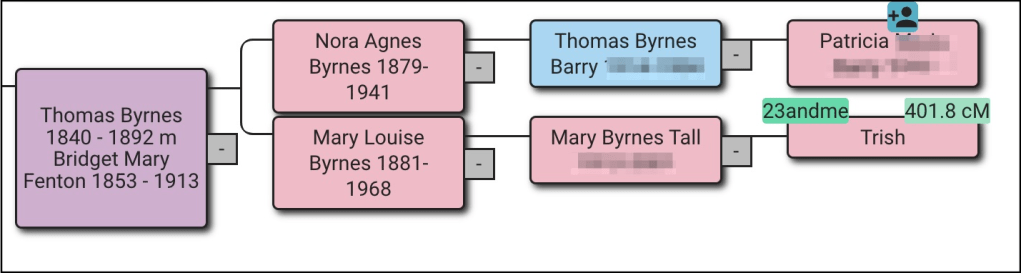
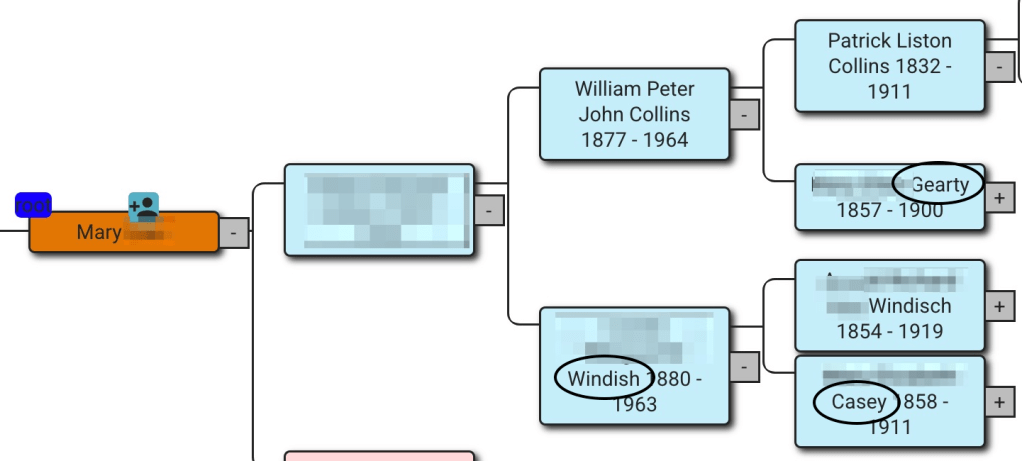
Often your research is focused on a specific part of your family line. This was the case with Mary who wanted to explain her father’s Collins line. Where had the Collins family lived in Ireland? When did the immigrate to the United States? And could we find more cousins on the Collins line? She had her DNA on Ancestry where we could select and study only her “Paternal” matches on her father’s Collins line. Mary’s family tree provided the surname of paternal grandmother, and great grandmothers that we’d want to avoid.
We started out by selected “Paternal” matches on her Ancestry DNA.

After scrolling down the page, we set the number of matches on the page to 50.

Recently Paul Weaver had commented on the Genetic Affairs Facebook page how that number could be changed to a maximum of 100, by editing the number in the URL of the page.

We saved several pages of the close matches first.

Next, we added the “Common Ancestor” filter, which is found at the top of the match list.

We saved the pages of matches that said Common Ancestor. We added CA for Common Ancestors to the filename to help keep track of what we had saved.A

Since AutoLineage keeps track of the matches that have been added, there’s no worry of duplicating a match.
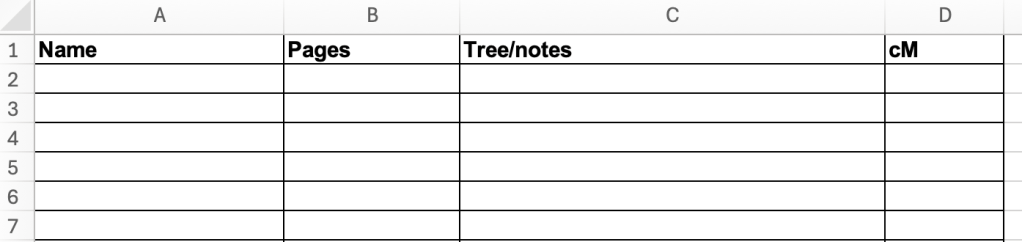
I make a list of the matches when I start looking at shared matches. I write down the match name, the number of pages of shared matches, notes and cM. This helps keep track of which matches I’ve seen and having the name there makes it easier to spell the name correctly on the gedcom when I save it. If the match is on the grandmother’s side, and not one that I’m saving I still write it down and add grandmother in the notes. This avoids having to look at that match again.
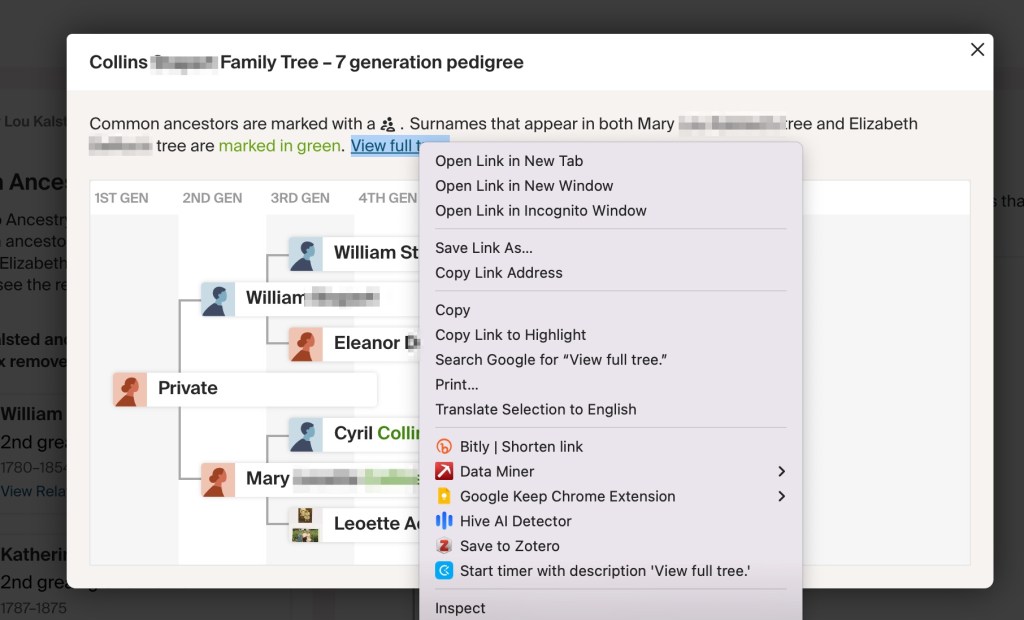
By looking at the Common Ancestors that Ancestry had found we could determine which matches we wanted to save based on Mary’s tree. If they were on the Collins line, we wanted their tree and their shared matches. First,we’d click on “Tree” and then “Expand Tree” using right click to have the expanded tree open in a new tab.
Then on the match’s page we clicked on “Shared Matches.”

While those are coming up, we’d go to the tab with the tree and save the gedcom using One2Tree in my Chrome extension.
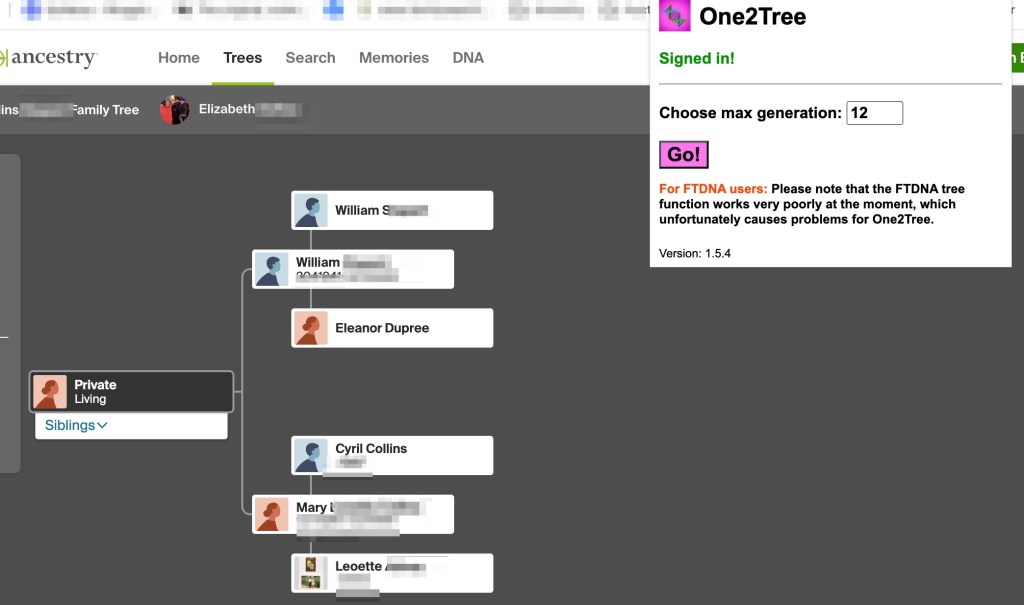
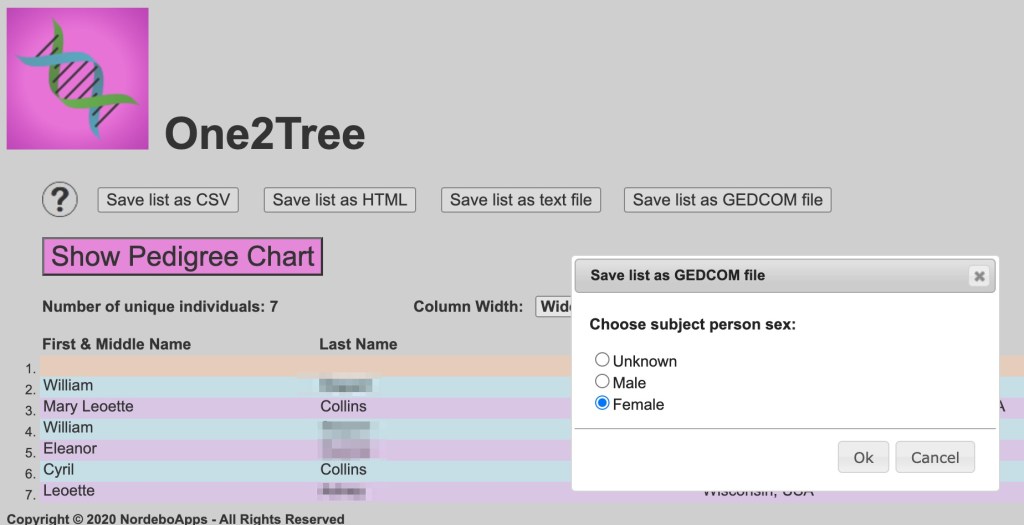
After the gedcom is saved to the Download folder, we rename it with the match’s name, copy the name and add the gedcom to Mary’s gedcom folder.

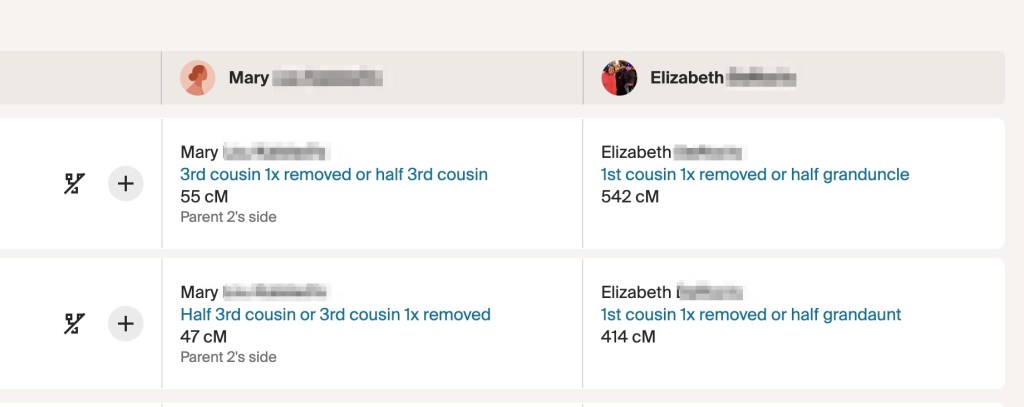
By then the shared matches were up. We’d sort the shared matches to show the closest match to this shared match.

Often that would give hints to the family relationship. Elizabeth’s closest matches are first cousins once removed, but often there are siblings or nieces and nephews which provide a lot of information for connecting the family trees.
Next, we’d scroll to the bottom of the page and record to the number of pages of shared matches on my list.

Here Elizabeth only has one page of shared matches. Using Command S on Mac (Control S on Windows) and we saved the first page of shared matches, pasting in the match’s name that was saved when we named the gedcom, and adding p1 when there are multiply pages for this match.
Once a number of pages of matches and shared matches have been saved and added to AutoLineage, we ran clustering to get an idea of where things were. Under Mary’s profile we selected Generic to bring up the page of commands available and then scrolled down to Perform Clustering Analysis.
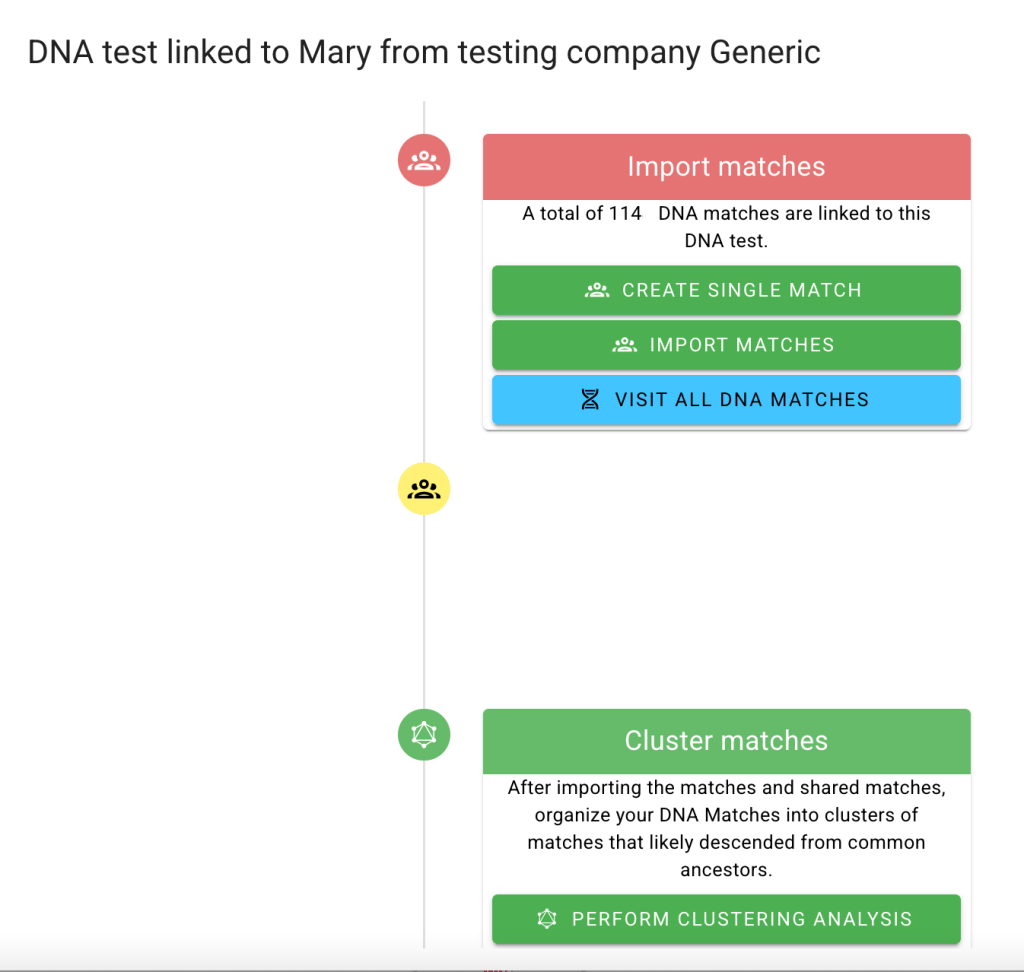
We ran the cluster with all the available matches and normal settings.

The cluster gives us some ideas of where we want to collect shared matches to fill in more connections for the cluster and also which trees would be useful for when we run Find Common Ancestors on AutoLineage.
Back on Ancestry, after collecting all the matches that said “Common Ancestors” and were on the Collins line, we removed that filter and “Search” for matches that have Collins in their trees. This will exclude any matches that don’t have trees, but since trees are needed for Finding Common Ancestors in AutoLineage, the matches who don’t have trees are often not that useful.
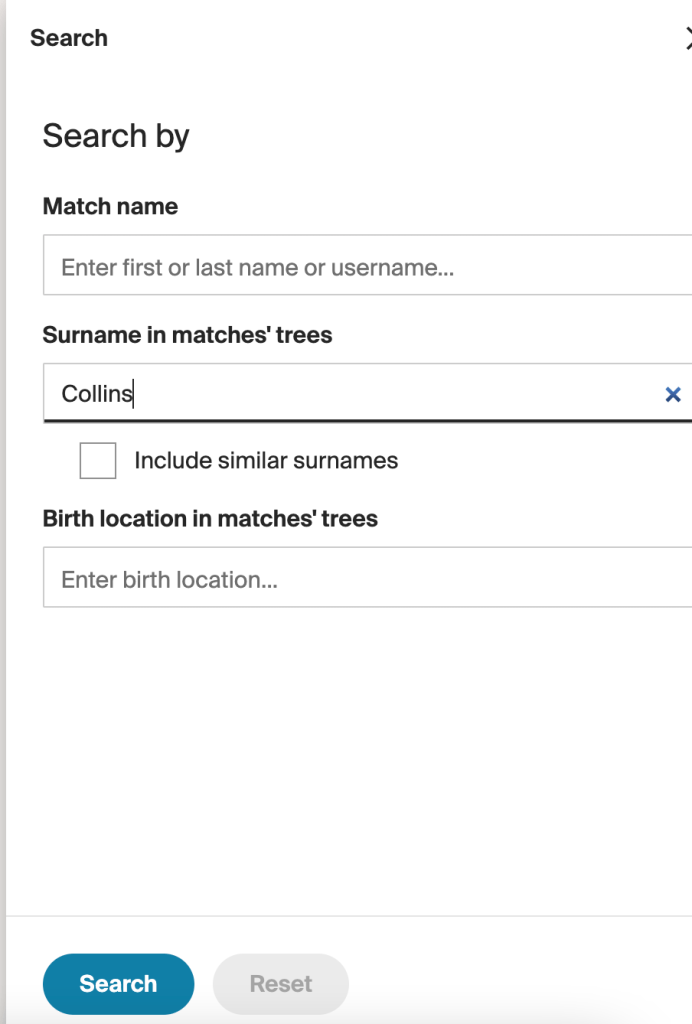
Again, saving those pages of matches. It’s likely that we’ve already added some of these matches and trees. While AutoLineage will ignore matches I’ve already added, it would let us add a tree more than once, and that is something we want to avoid. We set up AutoLineage DNA matches page on one tab and the Trees page on a second tab.
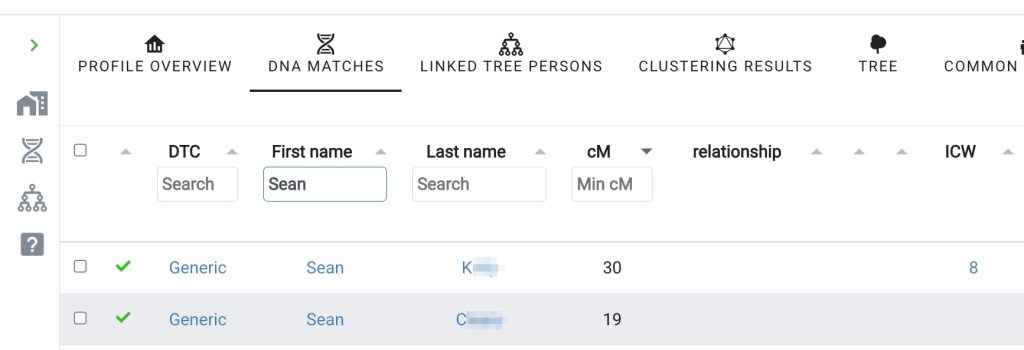
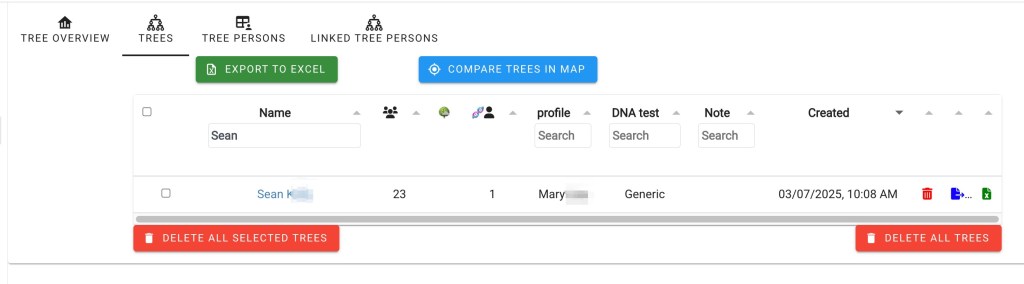
Here we can see that Sean K match has already been uploaded to AutoLineage and he has 8 In Common With matches. His tree is also loaded, so we can skip over him to the next match that has Collins in their tree. This saves a lot of repeating something that has already done a few days earlier.
Once a good number of matches and trees have been added we can find Common Ancestors. Starting on the page of Mary’s profile, we scroll down to near the bottom of the page and select “Find Common Ancestors” on the left side of the page.
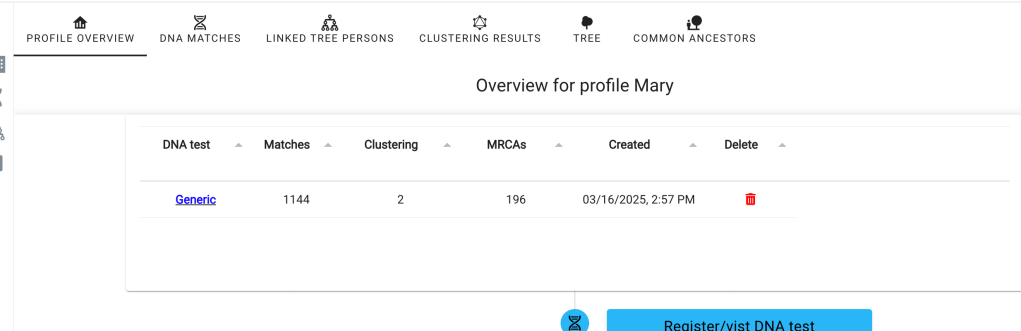

Clicking on Find Common Ancestors brings up the Wizard where we can make any changes that we want. Since Mary’s ancestors were born before the 1800 birthdate that is in the wizard, we changed it to 1750.

When the wizard completes its calculations the reconstructed trees appear. We obtain the beginnings of a nice reconstructed tree. In the tree below tester Mary, and matches Elizabeth, Doreen, and J have been connected back to their common ancestors, William Collins and Katherine Liston.

In conclusion if you are looking for Ancestry DNA matches that are on one specific line in your family, you can set up AutoLineage concentrating on that line. First select paternal or maternal depending on where the line of interest is in your family. Next look at matches that Ancestry labels “Common Ancestor.” You’ll want to compare the surnames found here to the names in your family tree to avoid common ancestors who are not on your specific line. Then remove the “Common Ancestor” filter and “Search” on trees that have the family surname or interest. AutoLineage will prevent you from adding a DNA match a second time, but you have to make sure that you don’t duplicate a tree. Checking for the match’s name in Trees under Tree Management before adding a tree can ensure that you don’t duplicate one.
Thanks to Mary for the use of her DNA data. If you’d like some help with your DNA contact me at info@patriciacolemangenealogy.com
 Patricia Coleman Genealogy LLC
Leave a comment