A new import tool has recently been added to AutoLineage, enabling the use of GEDmatch Tier 1 data. This powerful addition allows users to identify potential common ancestors based on tree data linked to up to 7,500 matches. Unlike existing tools (even the ones on GEDmatch) that typically only analyze trees for a small number of top DNA matches, this new capability dramatically expands the scope of common ancestor analysis.
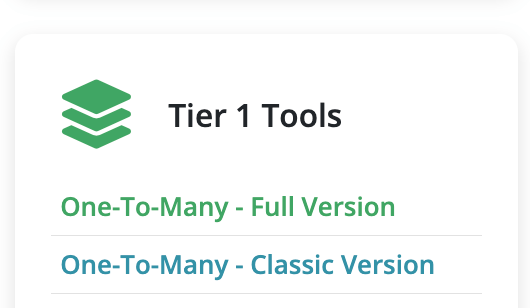
Start by selecting the One-To-Many – Full Version.
Enter your kit number and select 7500 matches for the comparison. Click on ‘Search’ and a message will come up for you to wait while the data is collected. When the site has loaded completely, save this page using the ‘Save Page As…’ command. Make sure the complete site is loaded, it might take a while to fully process.

Next click on the ‘Select all with Gedcoms’ command. This will select all DNA matches that have a linked GEDCOM.
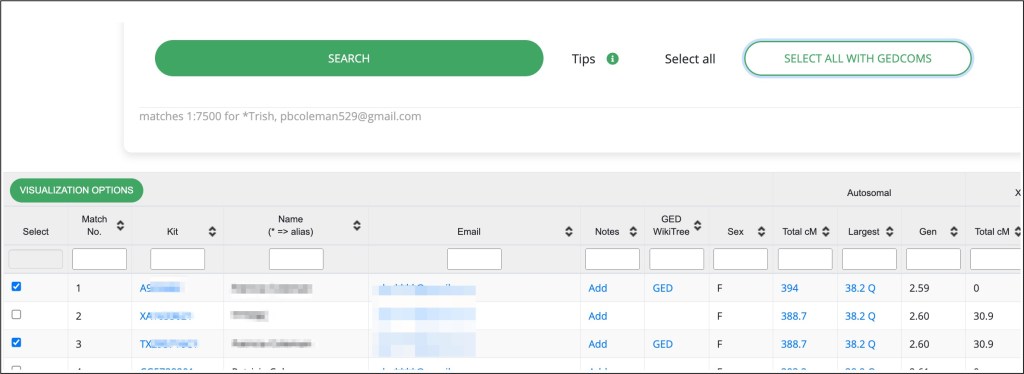
At the top of the list of matches and gedcoms is the ‘Visualization Options.’ Click on that next.
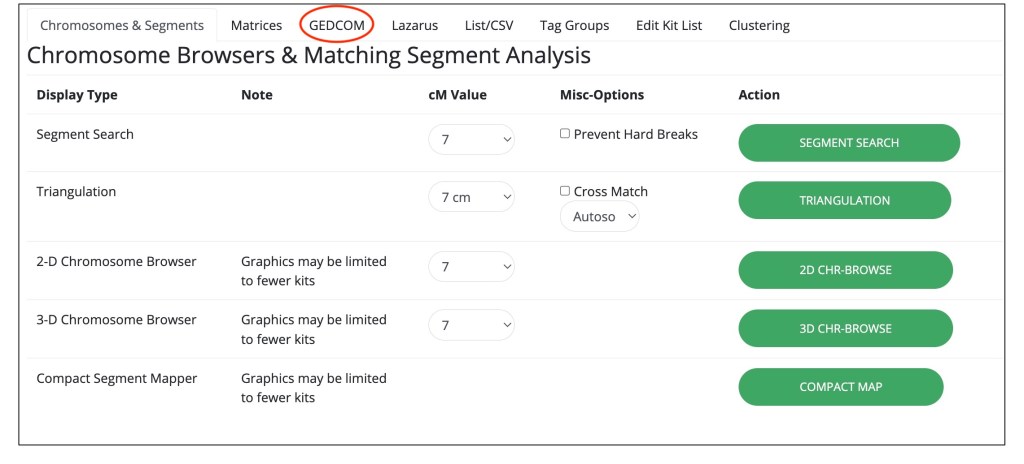
Select ‘GEDCOM’ that I’ve circled in red in the figure above, which will bring up the tools.

Select the ‘Find matching GEDCOMs’ which brings up a new tab with a detailed list of the gedcoms. This page will allow for linking the DNA matches (represented by the kit numbers) to their GEDCOM trees as well as which root person they represent.

‘Save Page As….’ using the filename that GEDmatch gives it. Make sure that the page is fully saved before the next step. Then go back to the previous page and select ‘Find Matching GEDCOMs (anc)’. This step takes some time to come up. It will quickly display a heading, but you don’t want to save the page until after that X, that I’ve circled in the figure changes to a circle with an arrow and the table has been filled in.


Once the page is complete, save it using ‘Save Page As….’ again using the filename that GEDmatch gives it.
Now you are ready to add the matches and their trees to the AutoLineage profile. If you’ve not made a profile yet, log into Genetic Affairs, select AutoLineage (local) and click on register a new profile.

After the profile has been created, select the register DNA test.
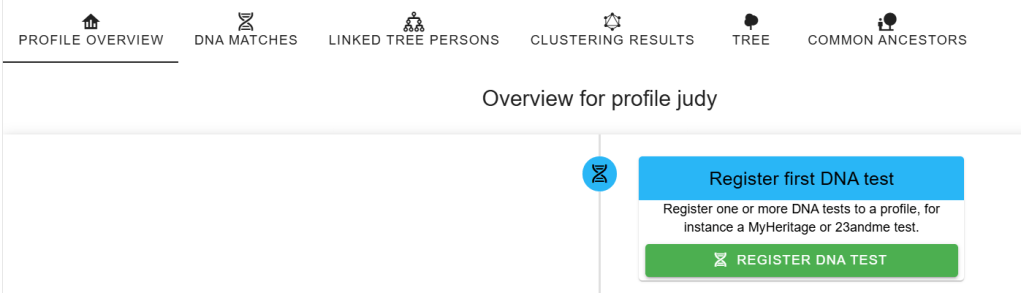
Next select the GEDmatch as the DNA test.
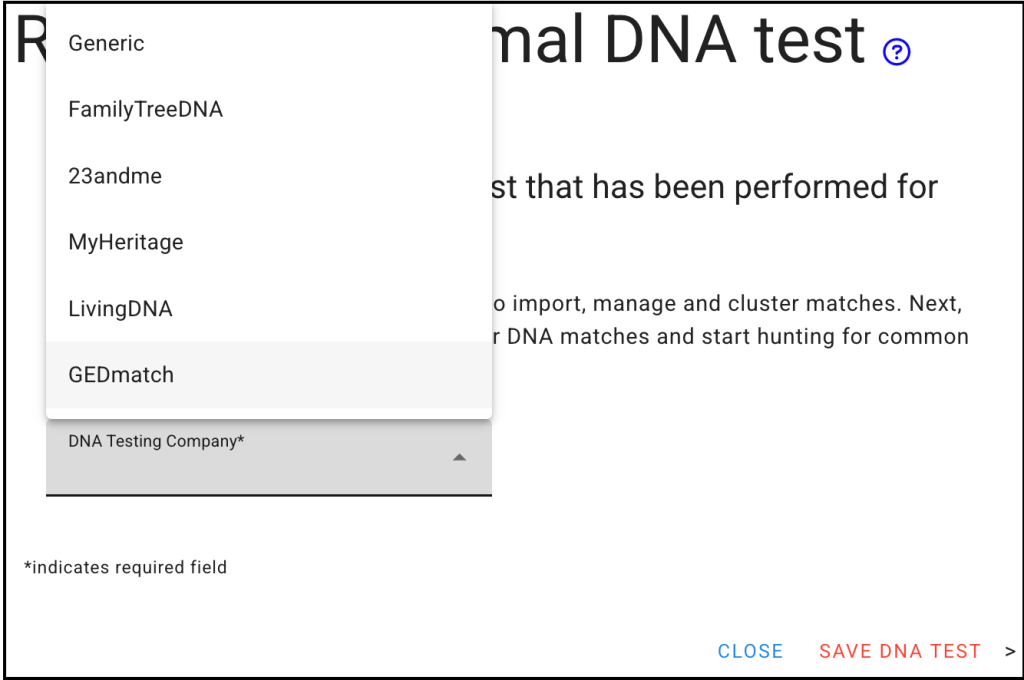
Next select Import matches and the Wizard will appear. The ‘One to many HTML file’ is what you want to select.

Clicking on the blue question mark explains what you want to collect, which you’ve already done.
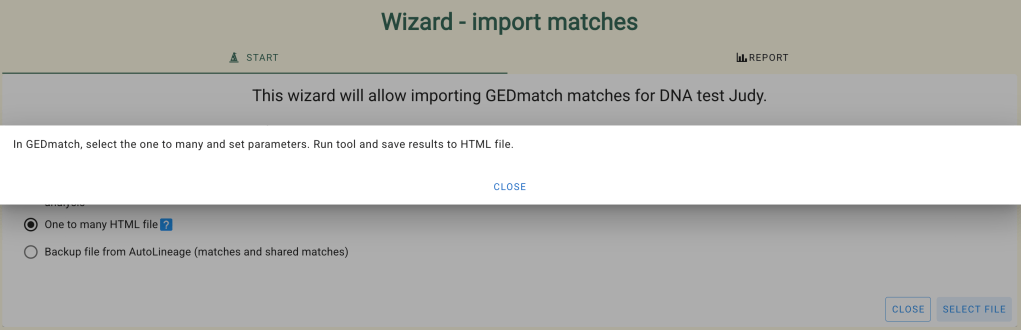
The list of matches is then displayed.

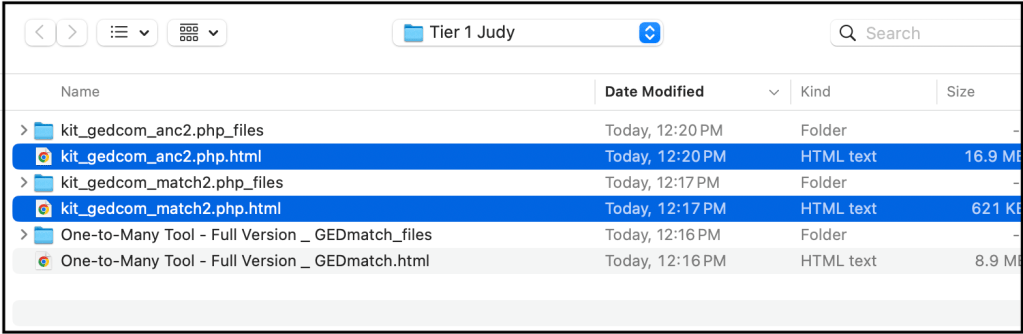
The next step is to add the gedcoms that you collected. Go to ‘Tree Management’ and select ‘Import trees.’

Clicking on the blue question mark gives the detailed instructions for using this GEDmatch import tool.


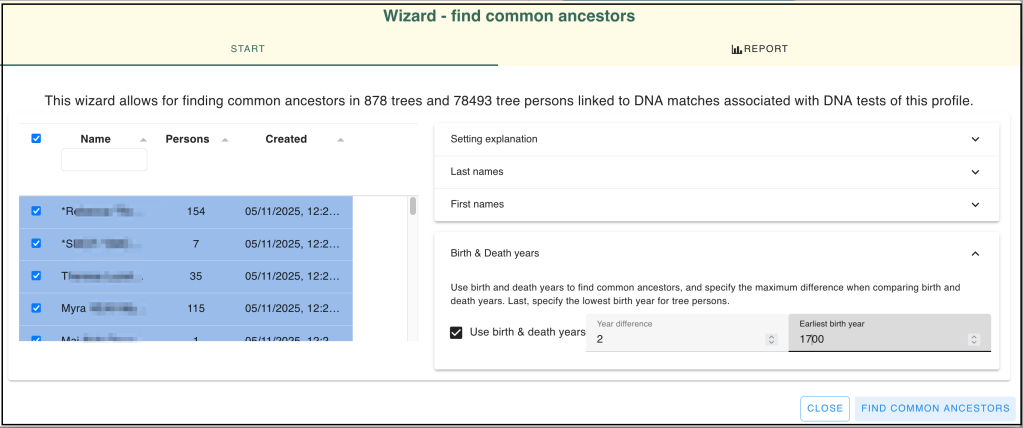
The trees are now automatically linked to the matches and with the matches and linked gedcoms in place, you can run ‘Find Common Ancestors.’ Select Judy’s profile and go to the overview page. Select the find common ancestor button.
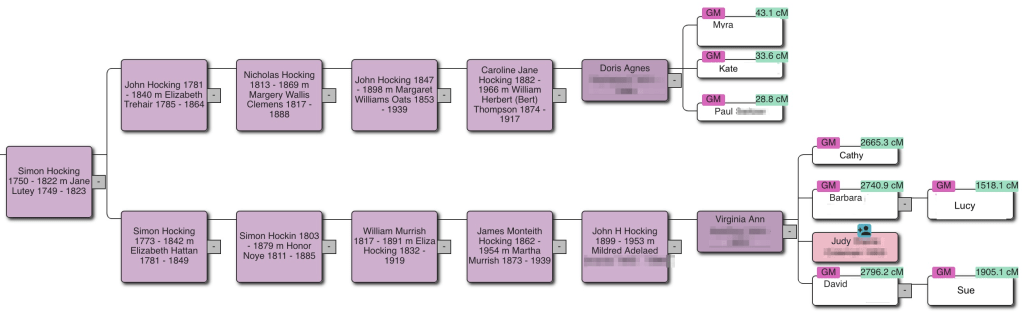
I know that Judy’s closest matches are her siblings and nieces. Then her next highest match is less than 100 cM. So I ran the ‘Find Common Ancestors’ wizard down to a birth year of 1700.
After waiting for quite some time, a large number of trees where found. The first one, shown here, connects Judy and her siblings to their fifth cousins once removed. Judy’s mother was a Hocking, whose family was originally from Cornwall, England. Some of the Hocking family immigrated to Australia, and Judy’s side immigrated to the United States. The Hocking line is well documented by the Hocking Descendants Society based on Australia.
In many cases when I find unknown matches and want to find the connection to the tester, I start building a private, unsearchable tree on Ancestry. After a short while Ancestry provides hints to records and other trees, and I also research other sources for records and information to make the connection. Luckily, a new GEDCOM export capability in AutoLineage can facilitate the tree building!
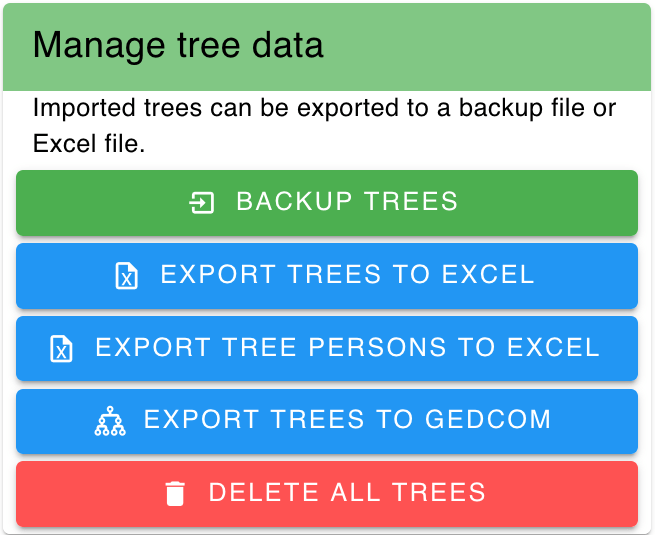
On the ‘Tree Management’ ‘Tree Overview’ Page scroll to the bottom to ‘Manage Tree Data’ and select ‘Export Trees to Gedcom.’ This option will generate a new GEDCOM file using all of the trees that have been found, and optionally you can add additional DNA matches that do not have trees. All trees and DNA matches are provided in the GEDCOM as floating trees or floating individuals. In addition, tree persons linked to DNA matches as well as the individual DNA matches are provided with the DNA match tag, allowing for easy retrieval when searching for people.

Profiles for Judy and another tester, Linda, are available. Judy’s profile has 898 trees that came from GEDmatch, which is the only test site I’ve added to Judy’s profile currently. The wizard shows trees linked to available profiles as well as showing all trees (the all-trees option). Moreover, it’s possible to deselect individual trees if they do not need further researching in Ancestry.
I’ve checked the ‘Integrate DNA matches’ which allows me to add up to 1000 additional DNA matches that are not associated to an existing tree. These would show up in the resulting gedcom as floating trees of one person.
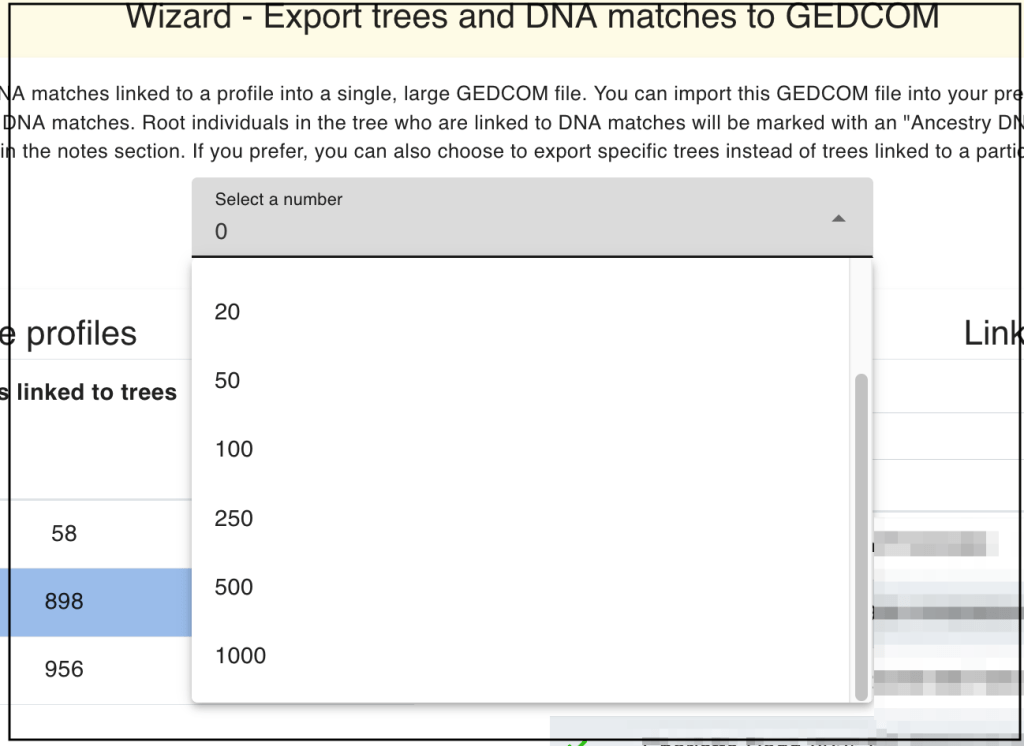
I selected 100 additional DNA matches and clicked on the export. It takes some time for the wizard to finish and it puts the gedcom, named ‘example.ged’ into your download folder.
Next in your Ancestry ‘Trees’ menu, scroll down to ‘My Trees.’

Select ‘Upload a gedcom file’ and add the ‘example.ged’ file. You can then name the tree whatever you like. I unclicked the ‘make the tree public’ and after it was processed I turned off the ‘make tree searchable’ under the Privacy settings.
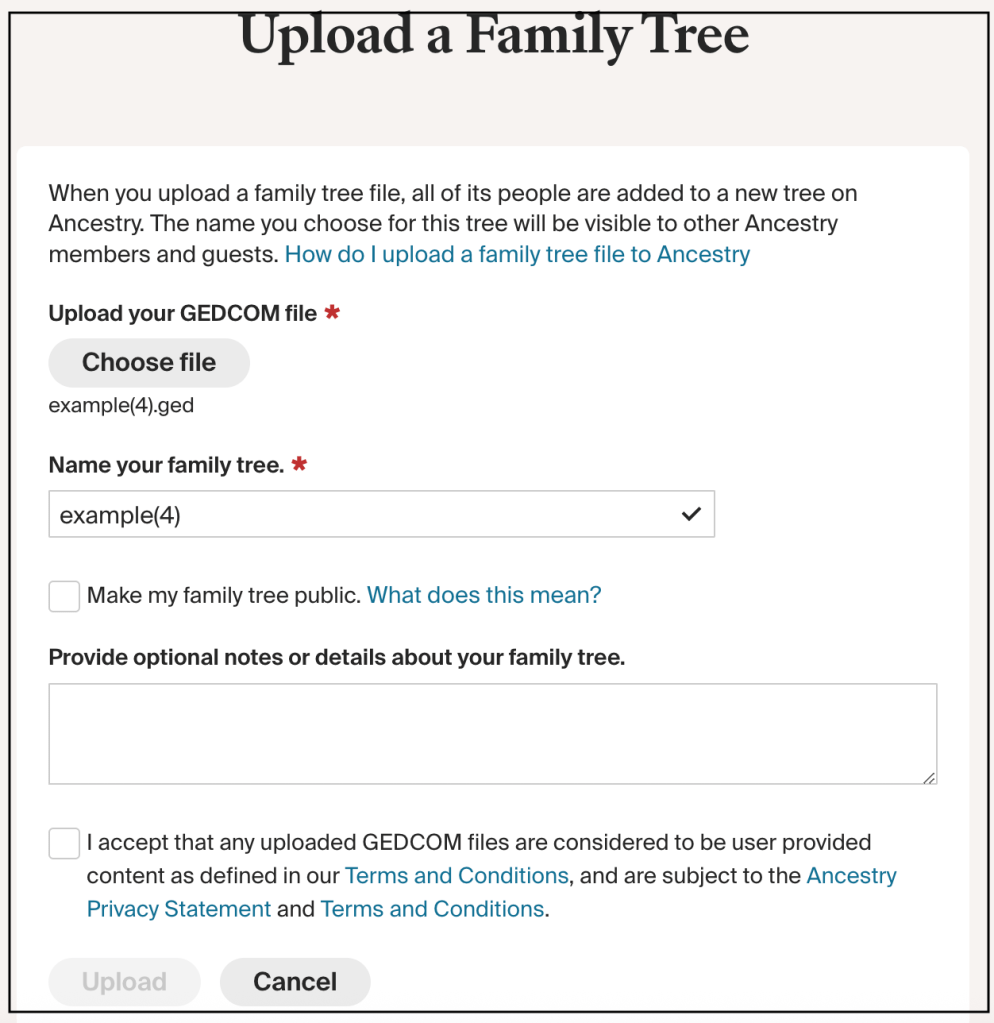
It took several hours for Judy’s large gedcom to finish processing.
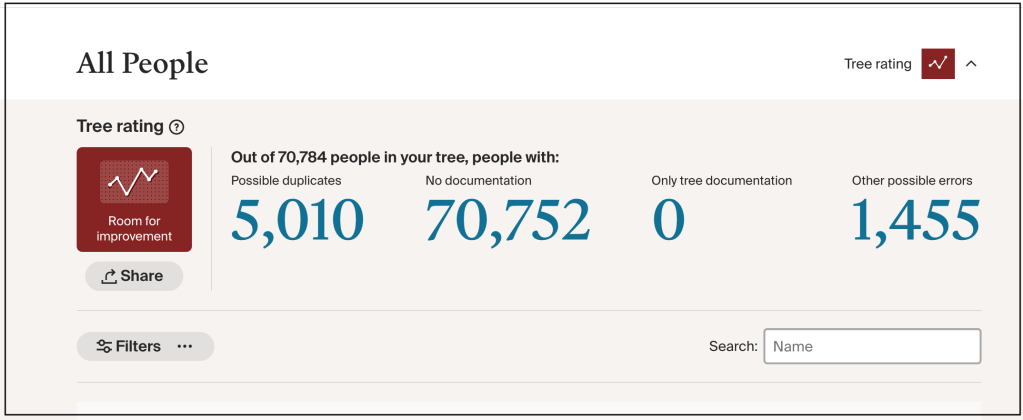
Since I want to find details of Judy’s third great grandfather, David Coleman, who was born somewhere in Ireland around 1801, I searched Coleman.
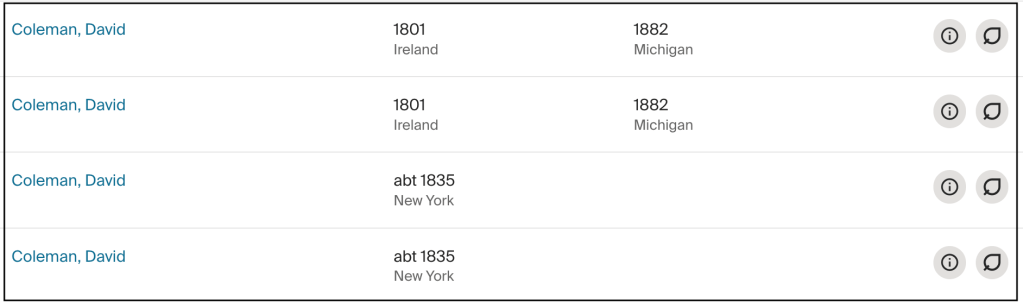
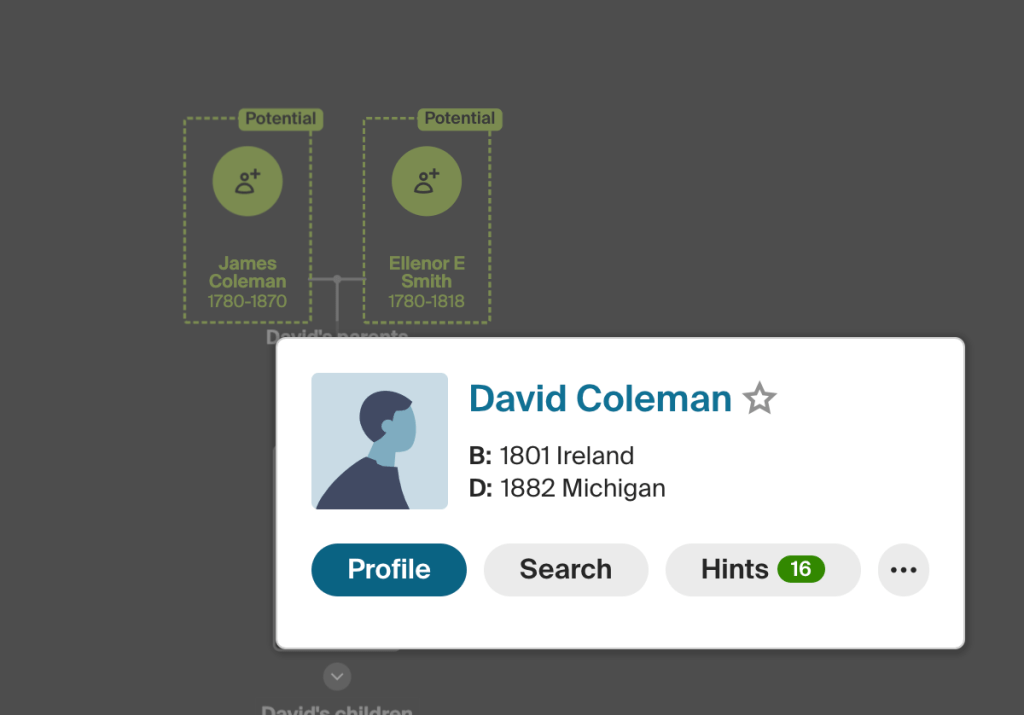
It appears there are two listings for David Coleman born around 1801 in Ireland. David, born in 1835 is his son. Carefully review the trees before merging them, or all the people in the tree will be duplicated. David has 16 hints and potential parents that someone has found. In the list of hints there are several US Federal Census, homestead records in Michigan and a death record for his daughter.
Summary
Using GEDmatch Tier 1 One-To-Many – Full Version, selecting 7500 matches and then finding the gedcoms that these matches have provides an easy way to find common ancestors using AutoLineage. This approach also works for profiles that do not have a linked tree, in that scenario, the common ancestors will be identified using only the trees of DNA matches.
The new export to GEDCOM functionality provides an easy method to boost your tree finding efforts, without the need to manually copy existing tree data.
 Patricia Coleman Genealogy LLC
Leave a comment