Great news for AutoLineage users! You no longer have to use “Save Page As” to import your Ancestry matches and shared matches—there’s a faster way with simple copy and paste. Instead of saving files to your computer, you can now copy your match or shared match page in Ancestry and paste it directly into AutoLineage in another browser tab.
Log into AutoLineage, set up a profile, and select ‘Generic’ as the DNA test. Under Import Matches select ‘Copy Paste Wizard.
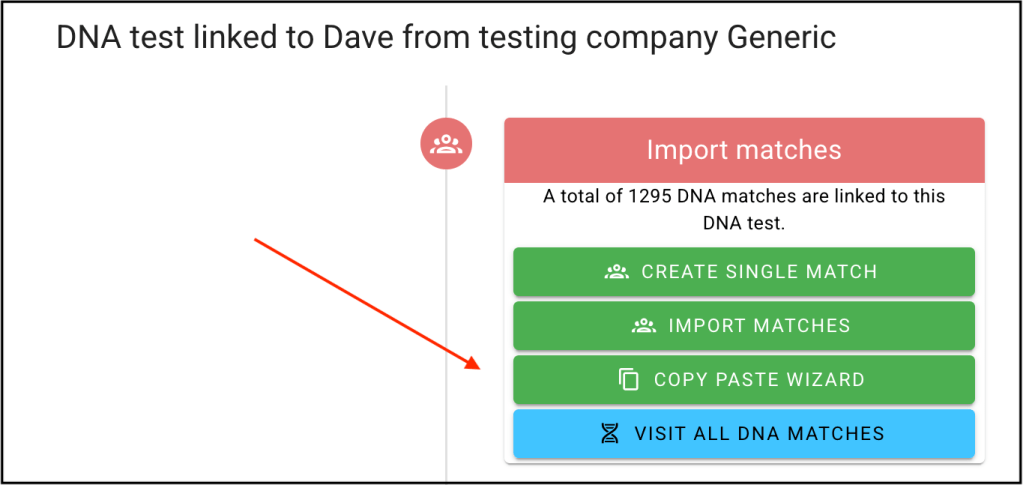
That brings up the Wizard.

The Wizard can be used for Matches and Shared Matches. It will show the Existing Matches, and Existing Shared Matches. You will see these numbers change as you add matches and shared matches. After you select and copy your Ancestry data you add it to the Wizard with the blue ‘Paste Data’ button. The list of New Imported Matches or New Imported Matches will update.
Ancestry’s match page initially shows 20 matches. If you scroll to the bottom of that page, you can change that setting to 50 matches. To make things more efficient that number can be changed to 100 matches per page. At the top of the window is the URL for the match page and it says ‘ItemsPerPage=50’ That 50 can be changed to 100, which makes copying the match data twice as fast!

Changing that 50 to 100 makes copying the match data twice as fast!

‘Select All’ under the Edit menu, or Ctrl A in Windows, or Cmd A on Mac will highlight all the matches on the page.

Select ‘Copy’ (Ctrl C or Cmd C) to copy all the data on the page and then ‘Paste’ it into the AutoLineage ‘Copy Paste Wizard.’

You’ll notice both the ‘Total Imported Matches’ and the ‘New Imported Matches’ should 100. At this point you can ‘Save and Close Wizard’ or go back to the tab with Dave’s Match data and select another page of matches. If there are no (shared) matches appearing in the wizard, go back to the page and try to select and copy the data from the top of the page.
Next collect shared matches. Dave paternal Aunt Mary tested at Ancestry. She has 14 pages of shared matches. Each page can be selected, copied and added to the ‘Copy Paste Wizard.’
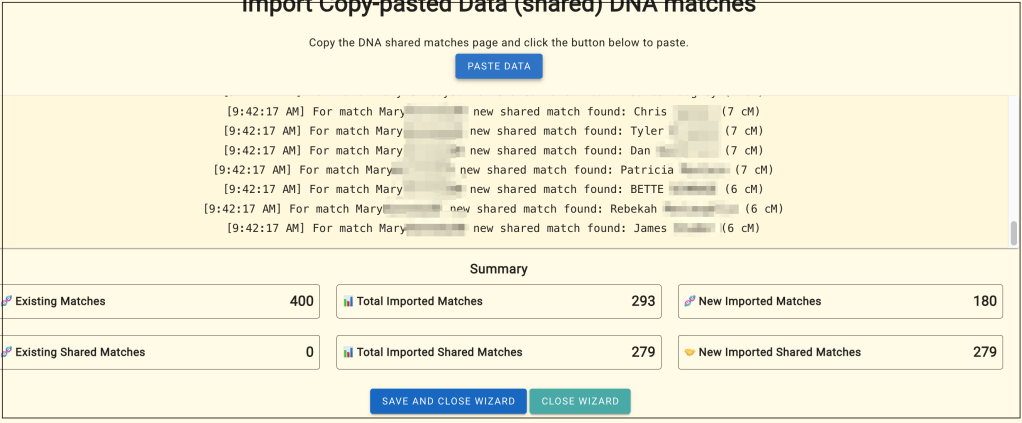
When shared matches are added to the Wizard, if a match hadn’t been collected before, the wizard adds that match to Dave’s matches as well. Four hundred of Dave’s matches had originally been added. The lowest cM for them was 25, but you’ll notice in the list of Mary’s shared matches several matches at 6 or 7 cM. The Wizard automatically adds these to Dave’s matches as well. Looking at ‘New Imported Matches’ shows there were 180 new matches that had values lower than cM that matched Dave and his Aunt Mary, that were added along with the shared matches.
Especially with Copy – Paste, it’s a good idea to backup the AutoLineage data after adding matches and shared matches. The backup option is at the bottom of the ‘DNA Test Overview’ page. This saves the data as a JSON file that can be loaded back into AutoLineage (under import matches).

Once you have enough matches and shared matches you can run clustering. There are several new features in clustering.

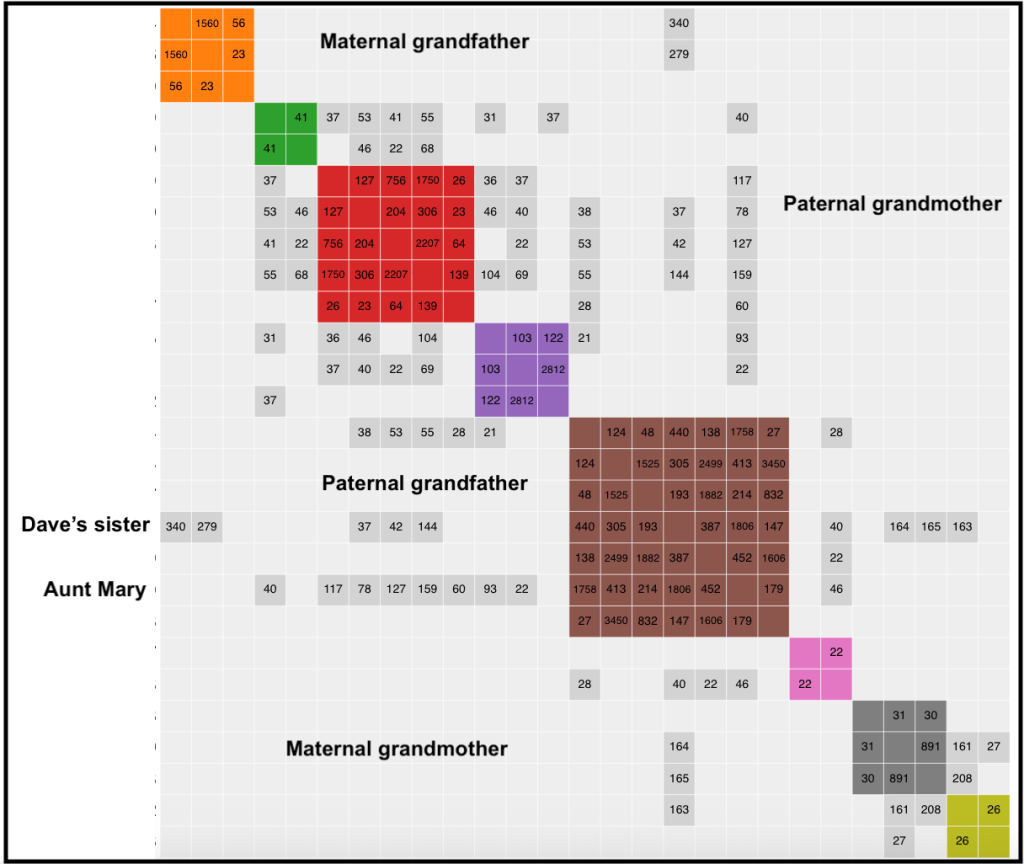
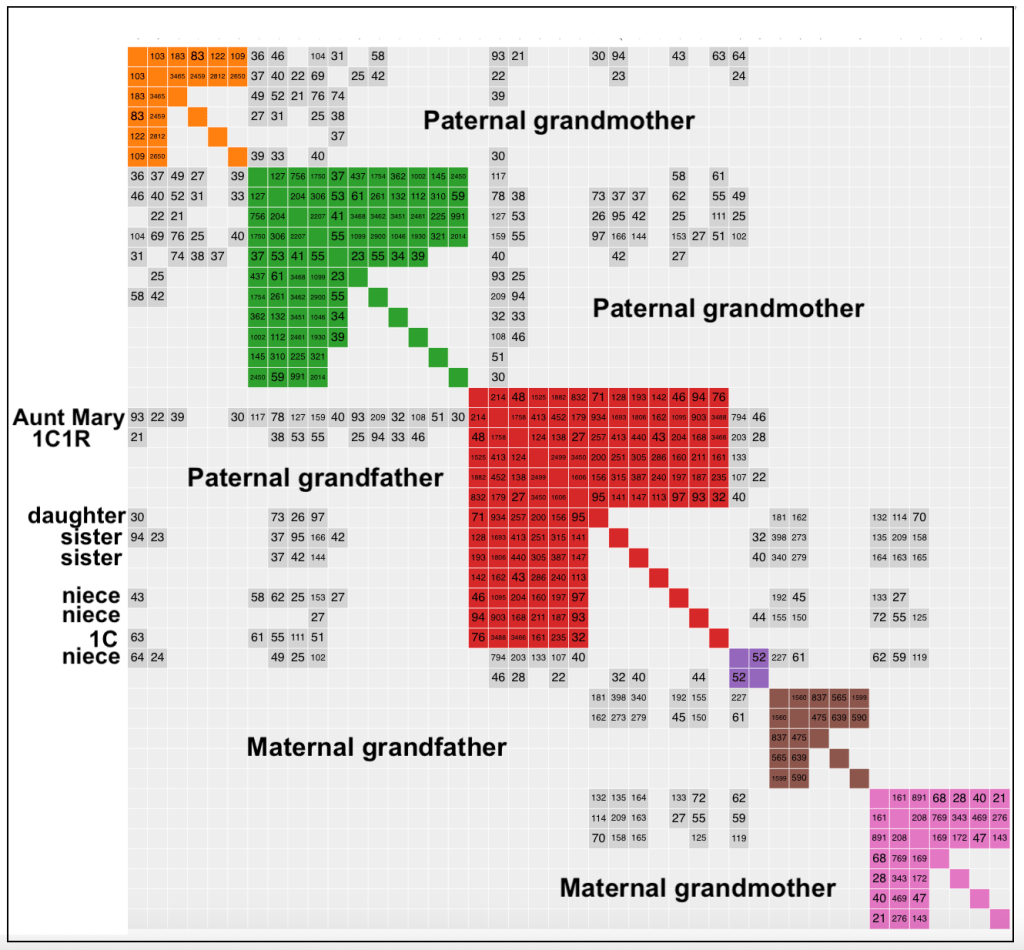
Unweighted clustering is the default cluster setting that AutoLineage (and Genetic Affairs in general) has always employed. Weighted clustering is a new way of clustering that considers the amount of DNA between shared matches. This first image is of Dave’s matches in an unweighted, dense cluster. The various lines of the family are labeled. You’ll notice the green, red, purple brown, and pink clusters have a lot of grey cells that connect to paternal Aunt Mary, and Dave’s full sister connects to the both the paternal and maternal clusters, as would be expected.
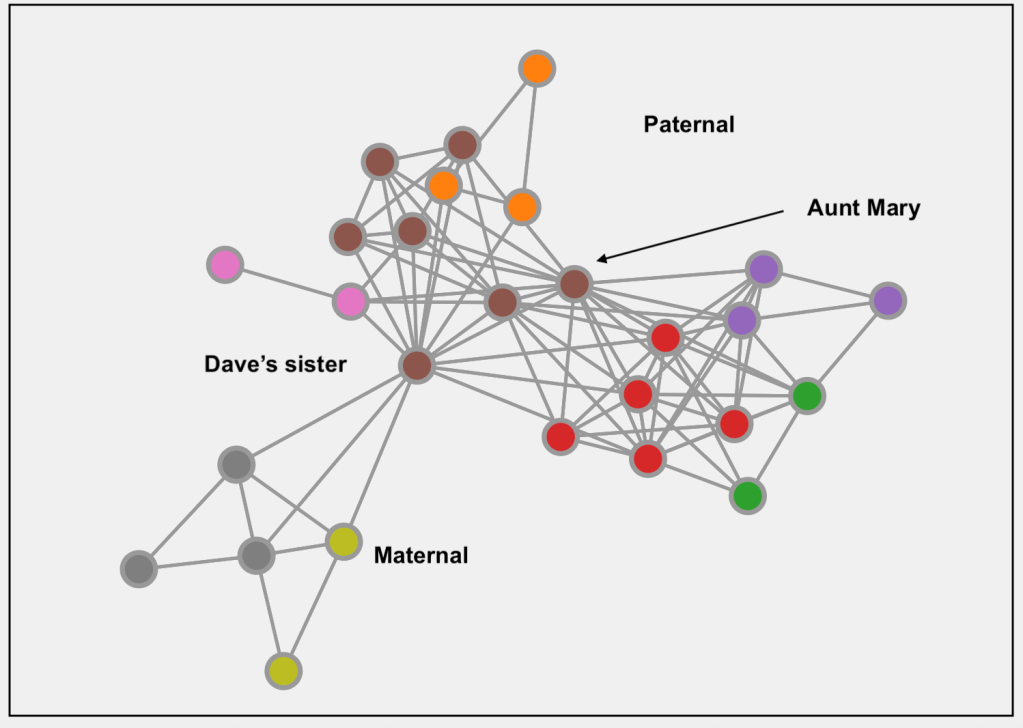
The graph images are clearer now too. This is the one for the unweighted cluster. You can clearly see how Dave’s sister connects their maternal and paternal matches and how all the paternal matches are connected to Aunt Mary.
This next image is of the weighted, dense cluster of Dave’s data. In this cluster a lot more of Dave’s close family members are seen, and the paternal grandmother side splits into 2 clusters. The orange cluster’s most recent common ancestor (MRCA) are Dave’s paternal third great grandparents, while the green cluster MRCA are his paternal second great grandparents. Here again sisters and nieces have grey cells to both paternal and maternal matches.
When you have a cluster you can run the AutoKinship tool, which is able to reconstruct trees based on shared DNA (and optionally MRCA data). From viewing the clusters select ‘Matches’ at the top of the window. This brings up a list of the matches in the clusters, which you can download to Excel if you want. You can also select the cluster that you want to use for AutoKinship.

The brown cluster was selected for AutoKinship and again brings up the actual cluster.
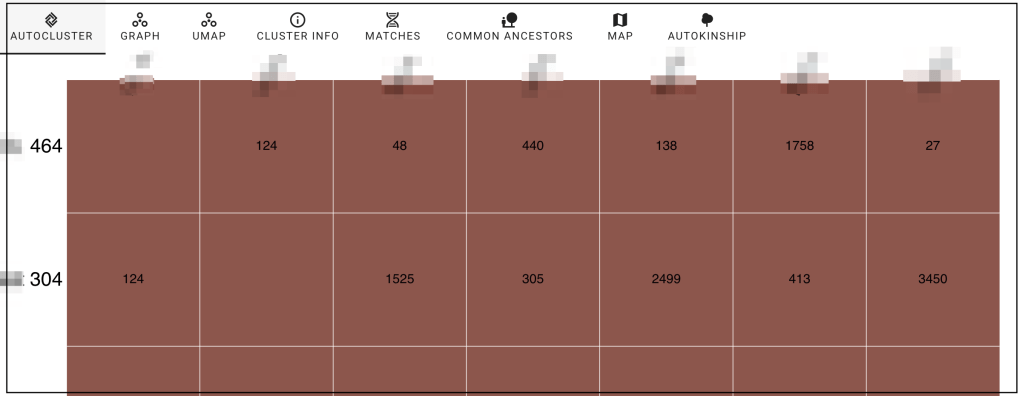
Clicking on ‘Matches’ again brings up the screen where you can select AutoKinship.
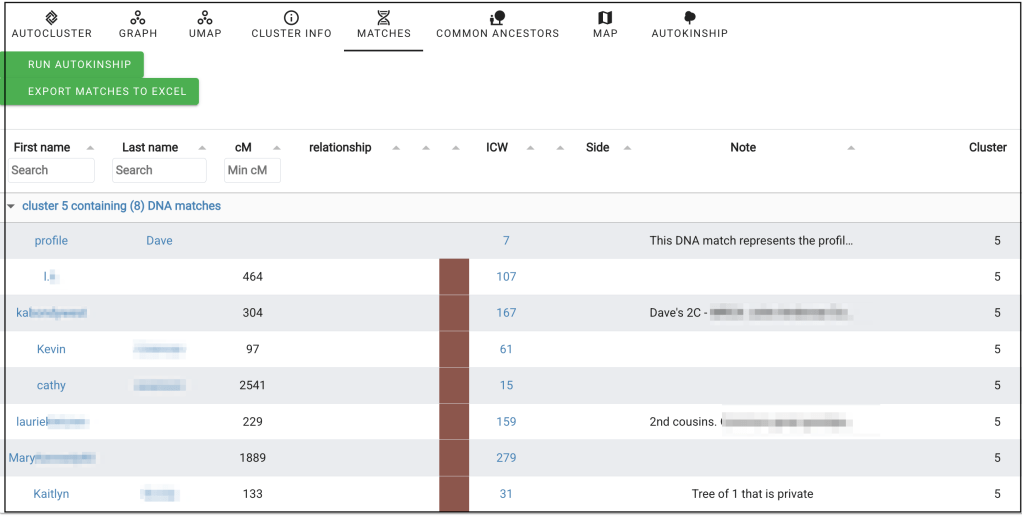
The list shows that Dave will be included along with the people in cluster 5.

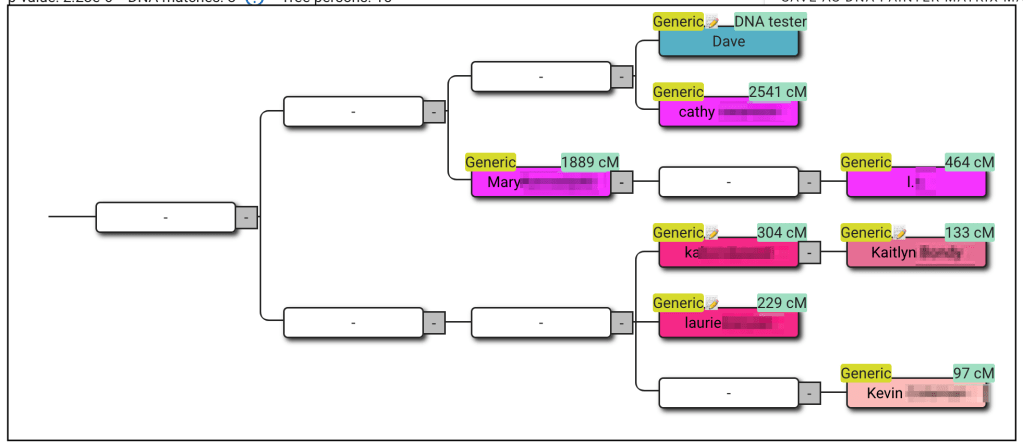
You can choose to add known relationships, or provide generational information between matches, before running AutoKinship if you wish. Or import trees for the matches and search for common ancestors. Both known relationships and MRCA information will be integrated in the reconstructed trees. Five trees were generated. This one perfectly located the matches in their family relationship. The MRCA are Dave’s great grandparents, John Coleman and Mary Ann Duff.
Conclusion
The new Copy Paste Wizard is a real game-changer for AutoLineage users working with Ancestry data. No more saving pages or juggling multiple files ,with just a few quick copy-and-paste steps, you can bring in both your matches and shared matches directly into AutoLineage. It’s fast, simple, and surprisingly satisfying to watch those numbers update as new matches appear!
I tested the Wizard with my own Ancestry data and found it worked beautifully. Within minutes, I had all my matches imported, ready for clustering and AutoKinship analysis. The process felt seamless compared to the old ‘Save Page As’ method.
Combined with the new weighted clustering and improved visualization options, this streamlined workflow helps turn raw match data into clear, meaningful family patterns and reconstructed trees.
 Patricia Coleman Genealogy LLC
Leave a comment