There are times when I think I don’t have a tree for a certain DNA match and will add one, only to discover that there was already a tree there. Especially if the tree was added automatically, and I can see how to add another generation or so to it. One way to check your trees and avoid having duplicate trees is to export the trees into Excel. At the bottom of the ‘Tree Management’ page is the selection.

In the Excel file sort into alphabetical order on ‘name’ in column A.

If you find a name appearing twice in the alphabetically list, it likely indicates that a tree has been added twice. One thing to be aware of here is when the match’s name is initials, as more than one match might have the same initials. I made a list of the duplicate names and initials and then went back to AutoLineage to look at the list of trees. Putting a name into the search field will show the duplicate trees and you can delete one of them. With the duplicate initials you can check if it’s one match listed twice or two different matches by checking the cM values. In the image below you can see that these are two different matches because of the different cM values.
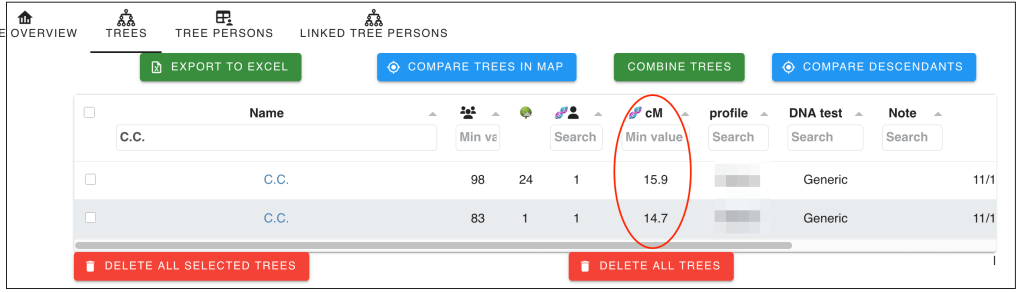
This is a quick and easy way to make sure that you do not have duplicate trees in AutoLineage, which can cause problems when finding common ancestors.
 Patricia Coleman Genealogy LLC
Leave a comment