If you have been collecting your Pro Tools shared matches for AutoLineage, you know it can take a bit of time. I’ve found another shortcut to speed up this collection. First I check if the match has a tree and look at the tree. If it’s only a few people and all are private, there’s no point in making a gedcom of that. But when there is a tree I make a gedcom on One2Tree. Before I save the match’s name on the gedcom, I copy the name. Then when I go to do the shared matches I’ve already got the name and then only have to add p for page. Since I was already on the match’s page, I select shared matches and am ready to collect them, as I describe below.
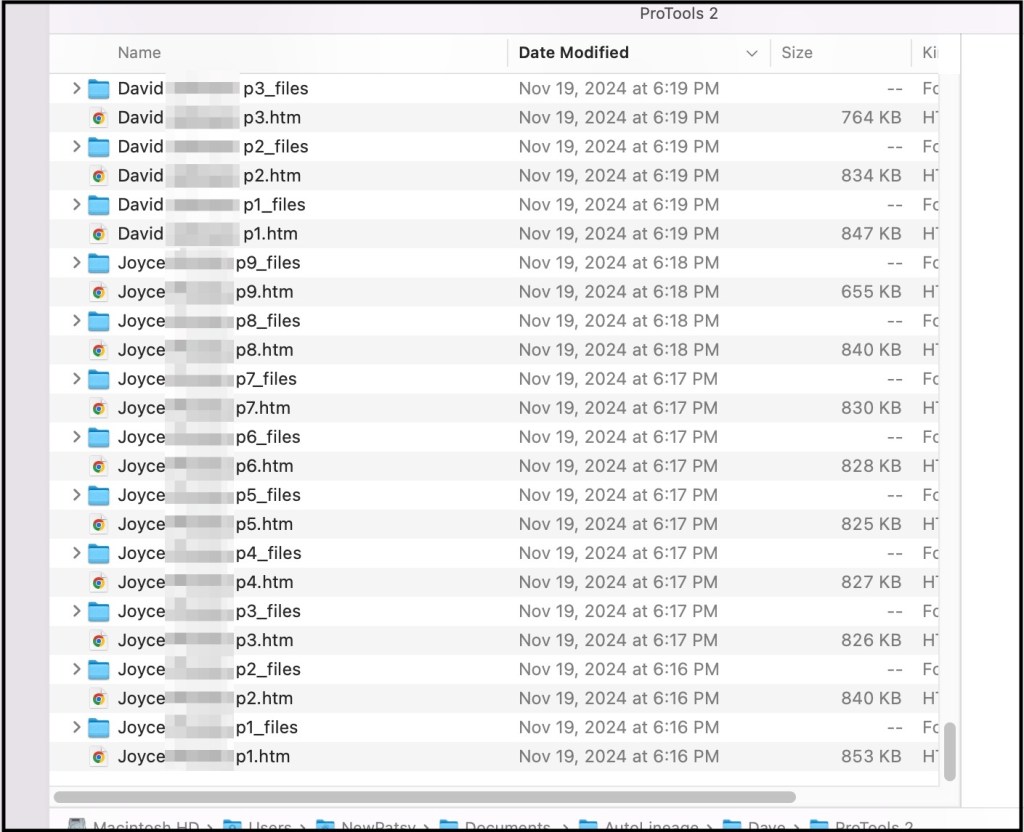
This is especially useful when the match has multiple pages of shared matches. The figure below shows match lists for Joyce, who has nine pages of shared matches and three of the pages of David’s shared matches. With these shared matches it is important to keep the folder as well as htm file that you add to AutoLineage. If you delete the folder, the htm file will also be deleted.
Tiffany is a match to Dave and she has 6 pages of matches. I start out by saving her first page.

Before saving the file I copy the match name and p, which I’ll use for all of the matches other pages and just add the page number.

Then I watch as the circle, that is in the upper right bar of Chrome, fills in around the arrow to make sure that the file has been completely saved

Once the file is saved I position my mouse next to the arrow and change to the next page. I then leave the mouse there for the rest of the files. I also set my left hand so I can use Command S and Command V for the rest of Tiffany’s pages. I’m on a Mac and Command S saves the page in Chrome and Command V pastes the beginning of the filename that I copied earlier. On a Window computer the commands would be Control S and Control V.

By just pivoting my fingers I can reach Command V.

Finger pivoted to reach Command V.
Once the file for the first page of Tiffany’s matches is saved, I mouse click to page 2. Then Command S brings up the ‘Save page as’ dialog. Command V copies in Tiffany p. I move my right hand and select 2, to make the file say ‘Tiffany p2’ and use the Return key to save the file. As the files are added to my directory I can see what has already been added which makes it easy to not overwrite a file.

The figure below shows all six pages of Tiffany’s shared matches. The first five pages have twenty matches each and the last page has nine matches. You’ll noticed that all six pages were saved in under two minutes.

Summary
I have found this to be a lot faster than having to go up to the File menu to get ‘Save page as’ and also to have to type the filename over each time. I’ve also found several matches with up to fourteen pages of shared matches. Especially when you’re trying to save a lot of shared matches to build out your clusters and subsequently the reconstructed trees, saving any time on the data collection is a bonus.
 Patricia Coleman Genealogy LLC
Leave a comment